The Website module lets you create an unlimited number of pages. Choose each URL carefully from the start because changing it later could break links you have already shared.
Create a new page
Open the Website module to see your existing pages. Click the + button in the upper-right corner to create a page.
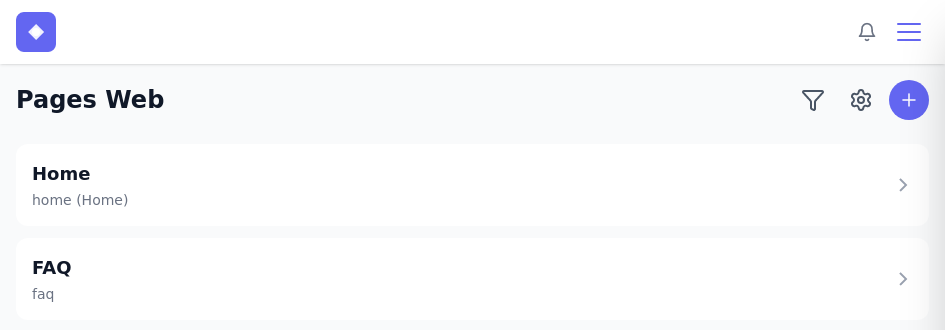
Enter the basic information:
- Page name – used internally to help you find the page.
- URL – the page path on your site, such as
about. Avoid spaces and accented characters. - Home Page – check this box if this page should be the root of your site.
- Display order – determines the order in the list and menu.
- Page title – the title that appears in the search results and the browser tab.
- Language – the language in which this page is written.
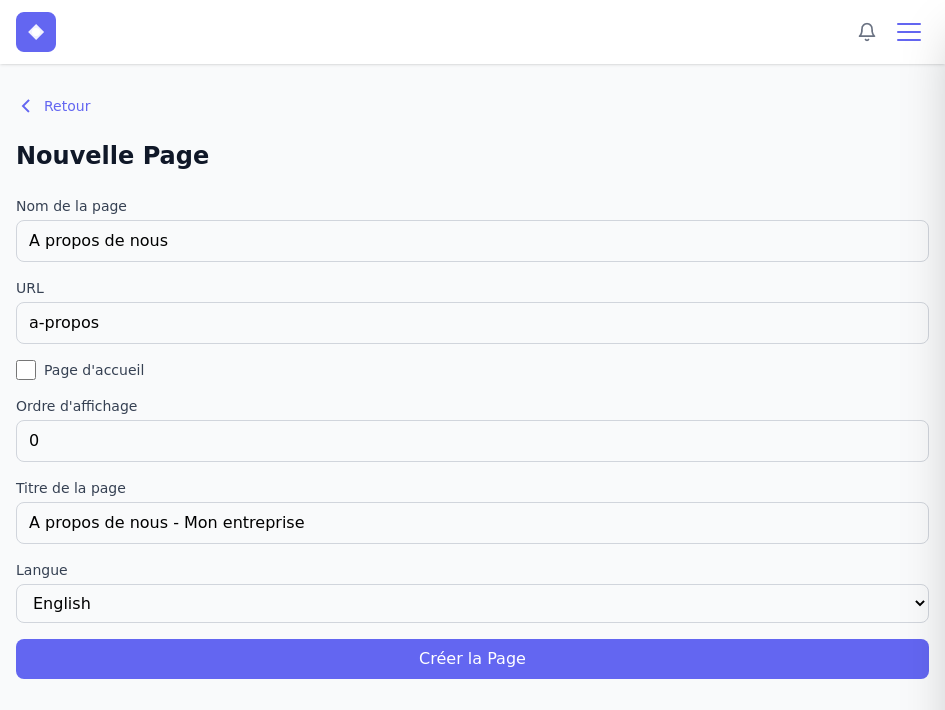
Click Create Page to access the editor directly.
Page editor
The editor opens with a toolbar at the top and an empty content area.
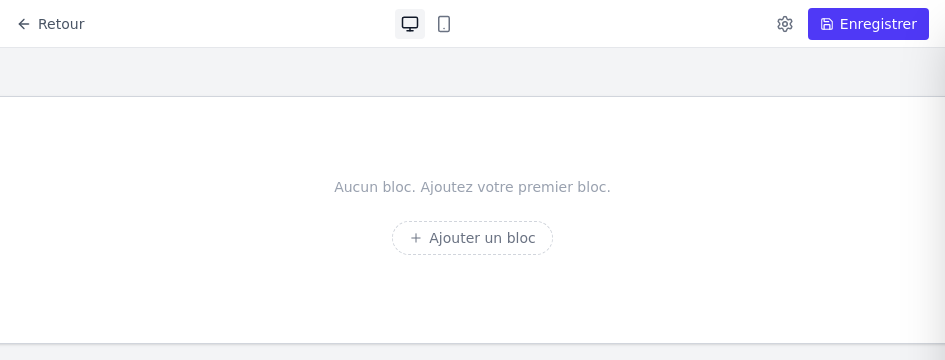
The top bar contains:
- Back – returns to the page list without losing saved changes.
- Desktop / Mobile – switches the preview between desktop (1200 px) and mobile (390 px).
- Page settings (gear icon) – opens SEO settings and other page options.
- Save – saves your current changes.
Content blocks
A page’s content is organized into blocks. Each block is an independent section with its own layout.
Click Add Block to create your first block.
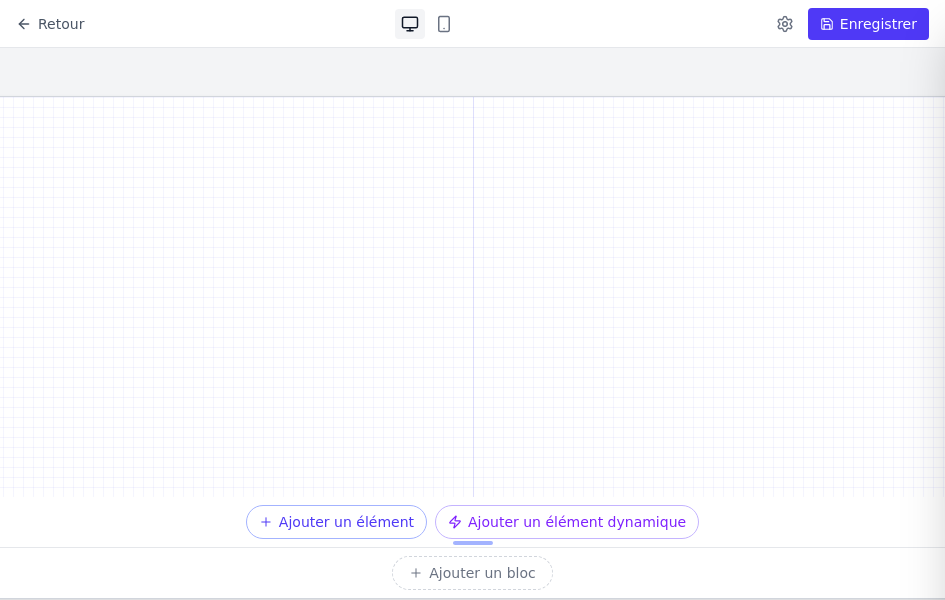
The block appears with two buttons:
- Add item – adds standard content such as headings, text, and images.
- Add dynamic element – adds interactive components such as a carousel or embedded code.
You can add as many blocks as you want. Each block has controls to move it up or down, access its style settings, or delete it.
Static elements
Click Add Item to choose from the available items:
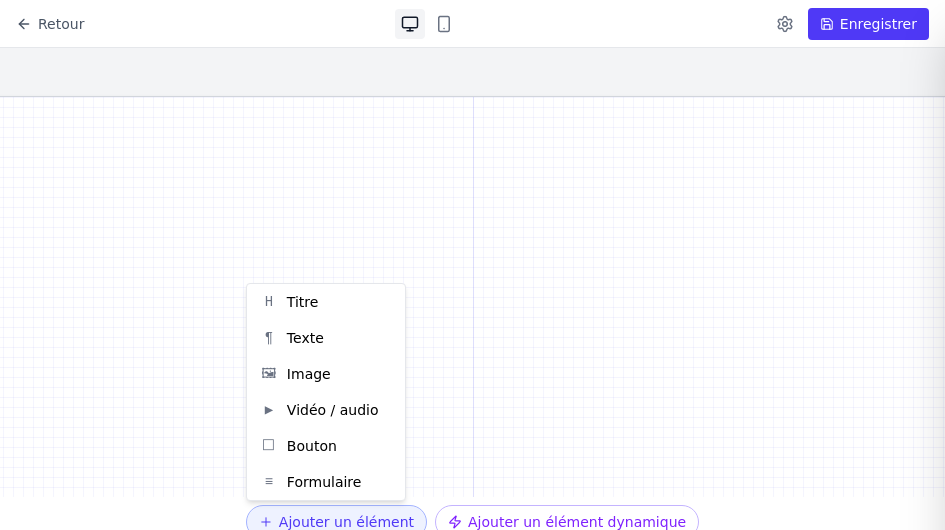
- Heading – a heading from level H1 to H6.
- Text – a rich-text paragraph.
- Image – an image with size and alignment options.
- Video / audio – embeds a video or audio file.
- Button – a call to action with a link.
- Form – a contact or lead capture form.
Dynamic elements
Click Add Dynamic Element for interactive components:
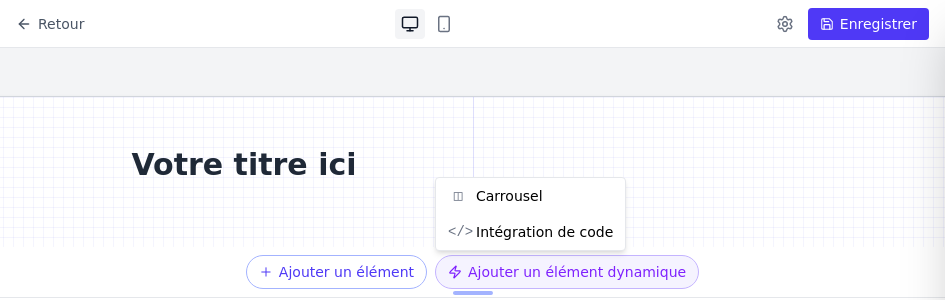
- Carousel – a slideshow of images or content.
- Embed code – embeds an external widget or script using HTML.
More dynamic elements will be added as the platform evolves.
Edit an item
Click on any item in the block to open its property panel on the right.
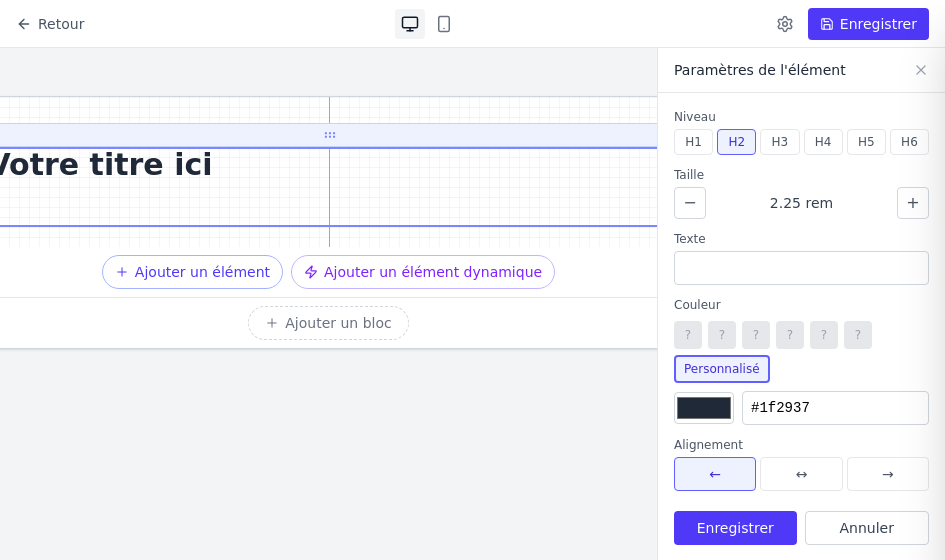
The panel varies according to the item type. For a heading, you can adjust:
- Level – H1, H2, H3, H4, H5 or H6.
- Size – in rem units.
- Text – the heading text.
- Colour – from the palette of your application or a custom value.
- Alignment – left, center or right.
Click Save in the panel to apply your changes, then click Save in the top bar to save the page.
Mobile preview
Click on the icon Mobile in the top bar to view your page as it appears on a phone (390 px wide). You can edit and save items directly from this view.
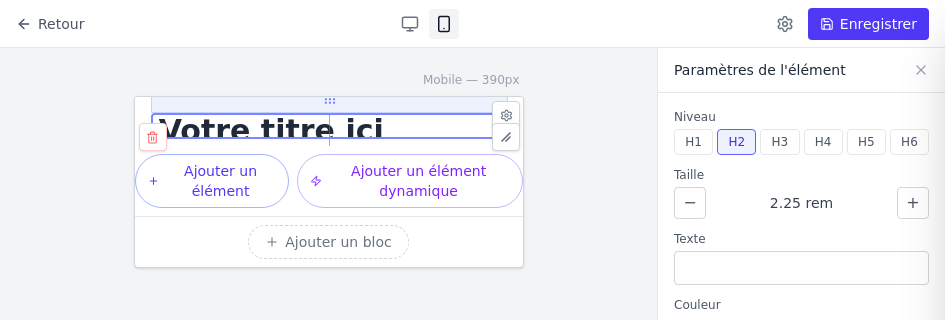
Switch back to Desktop at any time to return to the full-width view.