Changing the fonts on your site is simple and fast. The change applies across your entire website, documents generated via the document editor, and all pages automatically managed by your modules.
You can choose two distinct fonts: one for headings and titles, and one for the rest of the text. You can change one or both.
How to change fonts
Fonts are configured in your application Settings, under the Identity tab, in the Typography section.
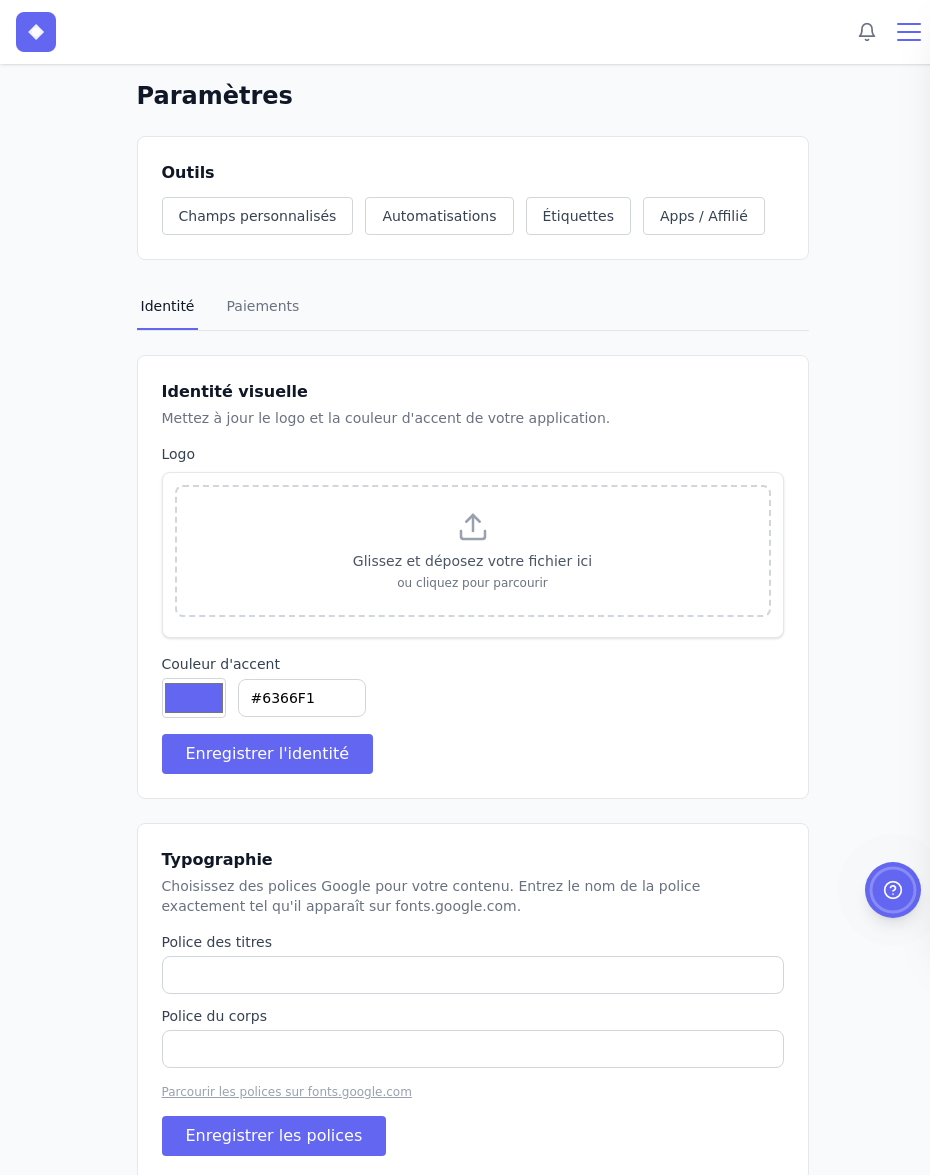
- In the main menu of your app, click Settings.
- Under the Identity tab, scroll down to the Typography section.
- Enter the exact name of the desired font in the Heading font and/or Body font field. The name must match exactly as displayed on fonts.google.com
– for example
Inter,Playfair Display, orLato. - Click Save fonts.
Changes are applied immediately across your entire website and modules.
Parle uses Google Fonts. You can browse available fonts via the Browse fonts on fonts.google.com link displayed below the input fields.
While you are in the settings, also note the Visual identity section just above: this is where you can upload your logo and define the primary accent colour of your application. These two elements also apply across the entire platform.
More advanced customization of your website – colours, navbar, footer – is done from the Website settings, under the Brand tab.