Your domain is the address your visitors use to open your site and connect to their portal, for example atelier-conseil.ca. It applies to the entire application, not only to the Website module.
Manage the domain from your account dashboard at apps.parle.work . Open Applications, find the correct application, then click Manage the domain.
Prepare for the change
Enter your primary domain without www, for example atelier-conseil.ca. Parle also configures the address beginning with www and redirects it to your primary domain.
Once the custom domain is active, the application’s old .parle.work addresses will no longer work. Remember to update links you have already shared in emails, social media posts, and documents.
If your domain is managed by Cloudflare
Parle can configure the domain for you.
- Click Connect Cloudflare.
- Give Parle one-time permission to review and apply only the changes shown on the screen.
- Check the proposed changes and confirm them.
- Return to Parle and click Check now.
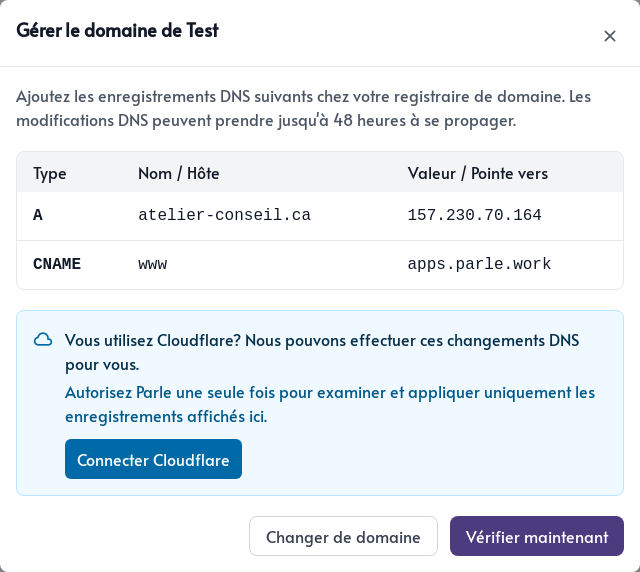
This authorization is used only for this specific configuration. You do not need to copy technical values or determine where to enter them.
If your domain is managed elsewhere
Parle shows the values that must be added at your domain provider. If you are unsure where to enter them, share the information with your provider or the person managing your domain. Then return to Parle and click Check now.
Allow time for the changes to take effect
Domain changes are not always visible across the Internet immediately. If the first check is unsuccessful, wait about 30 minutes and click Check now again.
Depending on the domain provider, the change can take up to 48 hours. Your .parle.work address remains available until Parle activates the new domain.
When Parle confirms that the domain is active, test the address with and without www. If you are unsure, the verification is taking longer than expected, or you would like assistance, contact us. We are here to help with this step and anything else you encounter in Parle.