Open the Store module, then click Go to settings. Return to this page whenever you need to update the store as your catalogue evolves.
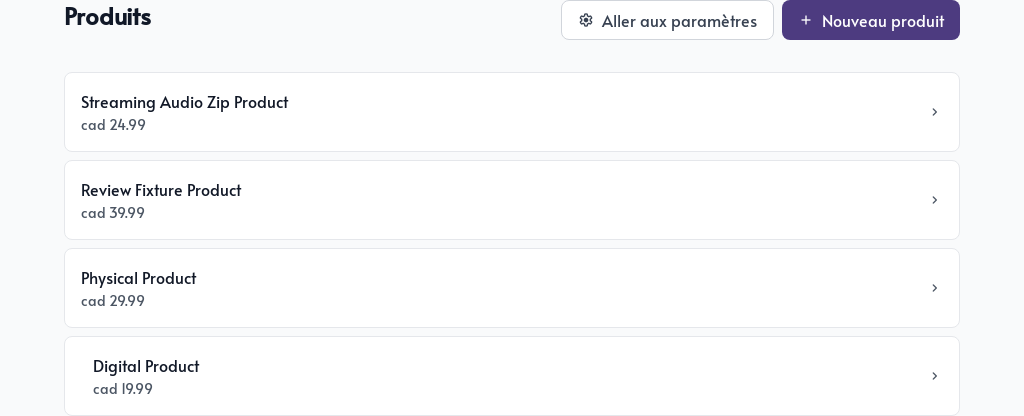
The settings are divided into six tabs: General, Shipping fees, Catalogue page, Categories, Reviews, and Fulfillment.
General
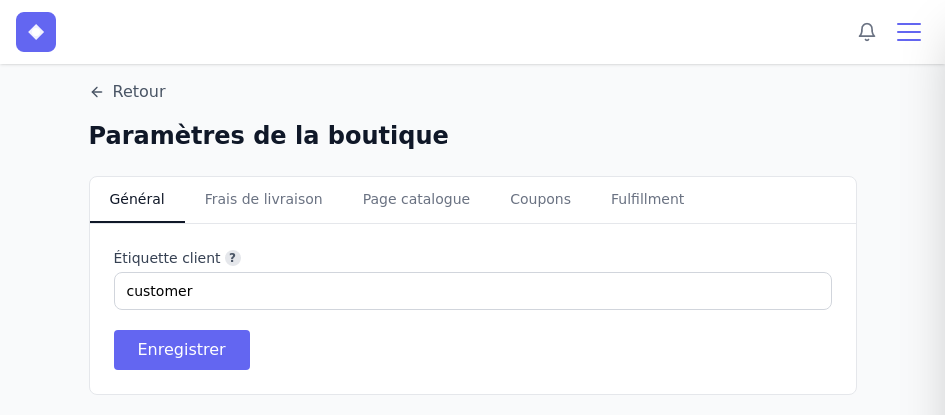
The Customer tag is added to the CRM contact of everyone who buys from your store. Use a short, descriptive value such as store-customer to find these customers or trigger an automation.
A product can also have its own tag. After a purchase, the contact receives the store’s general tag and the tag for each product purchased.
Choose the product order
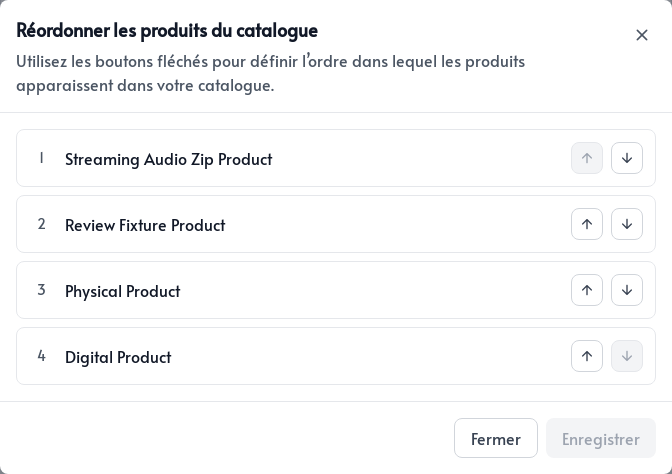
Click Reorder products to set their display order in the public catalogue. Use the arrows to move products, then save.
Shipping fees
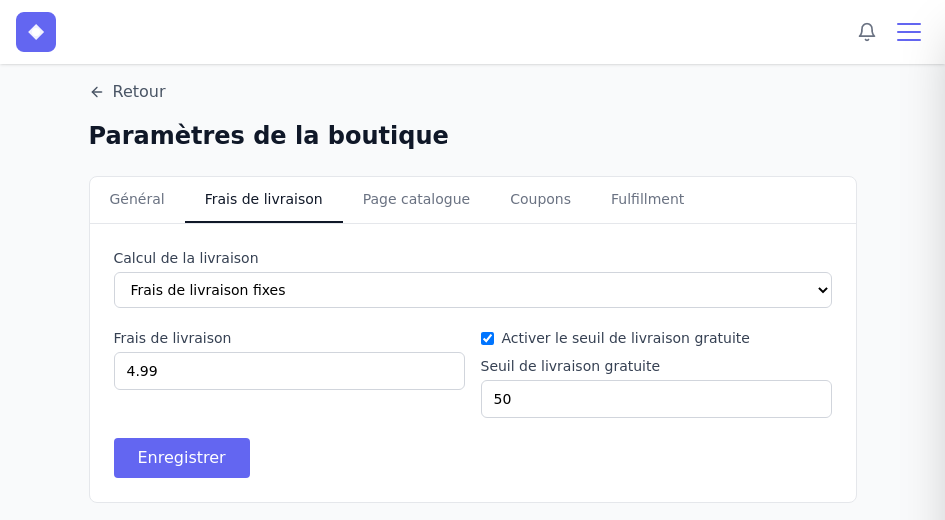
Three calculation methods are available:
- No shipping fees for a digital store, pickup, or free shipping.
- Fixed shipping fees to apply the same amount to every order that must be shipped.
- Shipping fees by region to set rates by country and province or state.
With fixed fees, you can enable a free shipping threshold. The fee is removed when the eligible subtotal reaches this amount.
Create regional rules
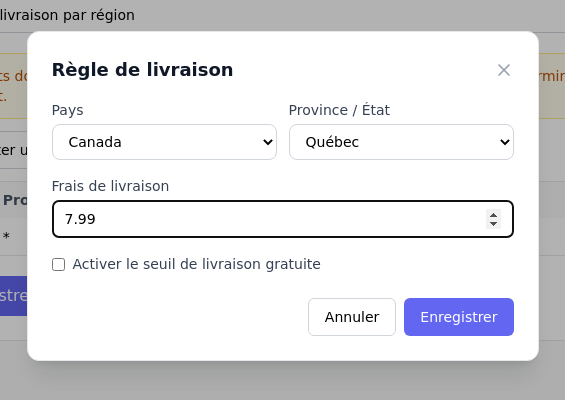
Choose Shipping fees by region, then click Add shipping rule. Select the country and region, enter the rate, and optionally enable a free shipping threshold for that rule.
Saved rules appear in the table and can be edited or deleted.
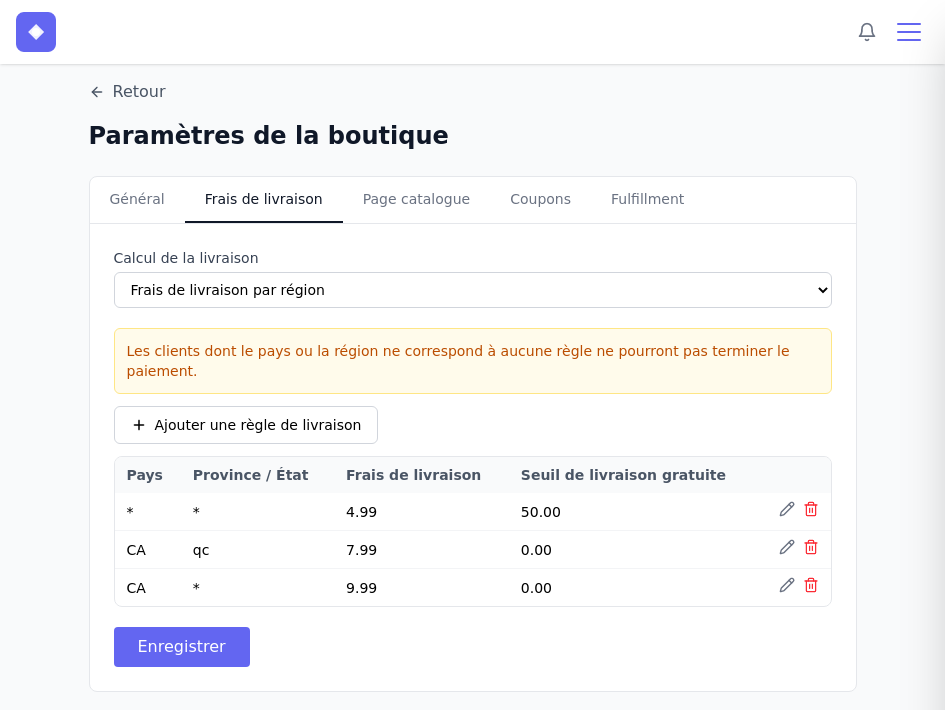
The value * represents every country or region. * / * therefore acts as a general fallback. A customer whose address does not match any rule will not be able to complete checkout.
Catalogue page
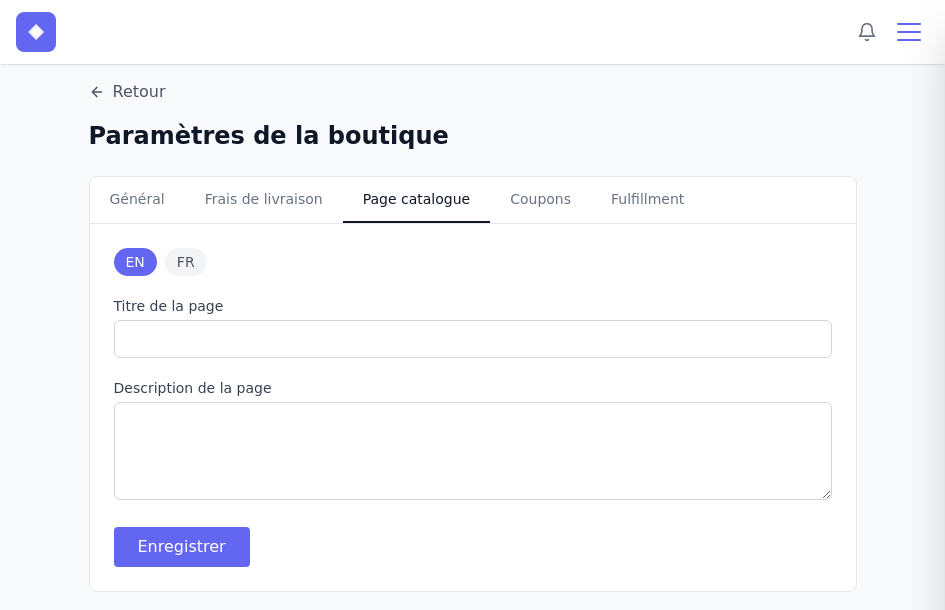
The public /products page displays your published products. Use this tab to set its title and description. Use the EN and FR buttons to adapt this text for each available language.
Categories
Enable Use categories. Like the catalogue title and description, categories can be configured in English and French.
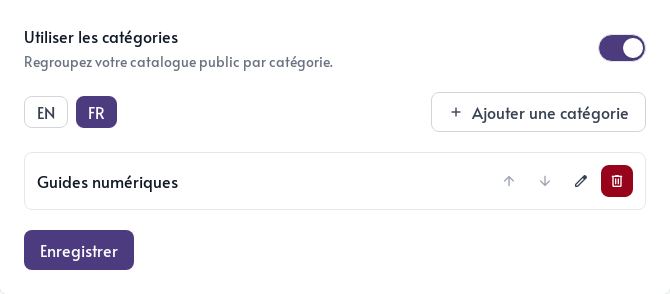
For each category, enter a name and short description. Hide from catalogue list removes the category from the main page while keeping its page available through a direct link. This is useful for a private collection or targeted campaign.
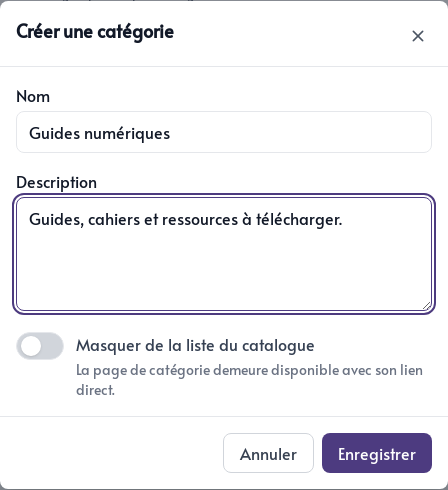
Use the arrows to set the category order. Once categories are enabled, a Category field also appears in the product form.
Reviews
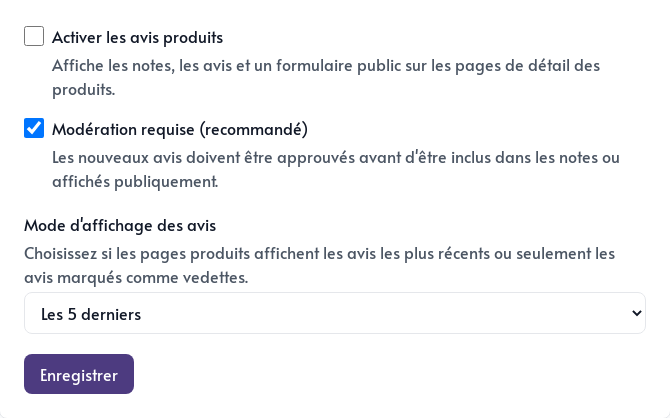
Enable reviews to display a rating, comments, and a public form on product pages. Moderation required lets you approve every new review before publication.
You can display the five most recent reviews or only those you have marked as featured.
Fulfillment and notifications
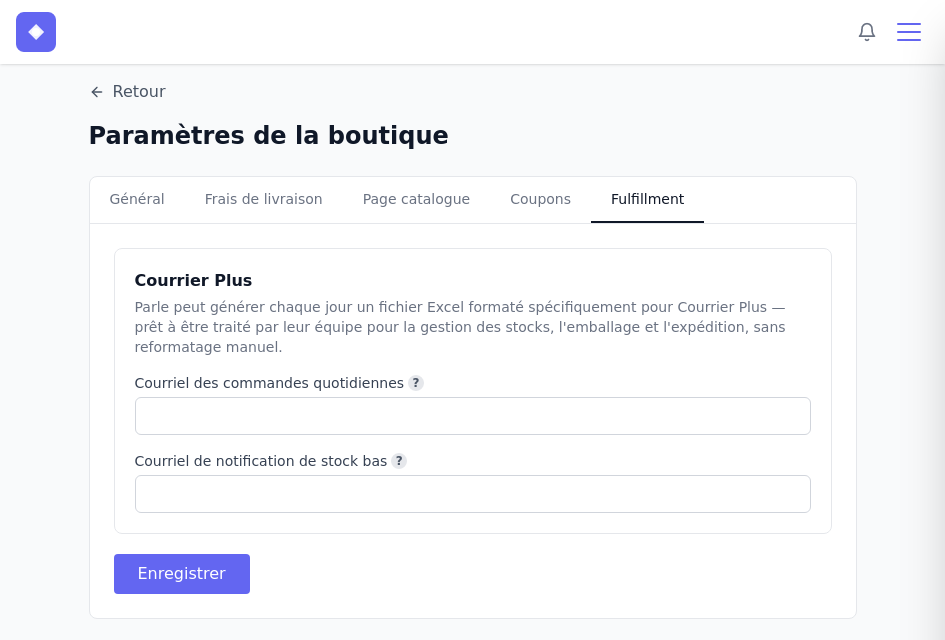
Daily order summaries and low-stock alerts are managed separately for each administrator. Click Notification settings to choose which notifications you want to receive.