Open the Store module, then click New product.
Present the product
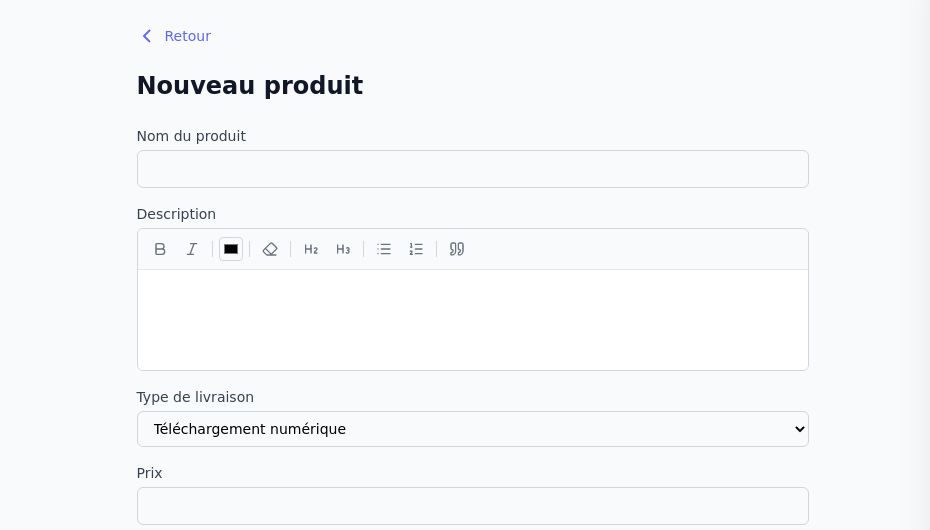
First, fill in the following fields:
- Product name: the title displayed in the catalogue and on the product page.
- Short description: a brief introduction that helps customers quickly understand the product.
- Description: a rich-text editor for explaining the product’s contents, benefits, and terms.
- Delivery type: choose a digital download or physical product.
- Price: the amount charged in Canadian dollars.
Choose the delivery type
Digital download
This type is suitable for guides, templates, audio files, and other content delivered online. Upload the file the customer will receive after purchase.
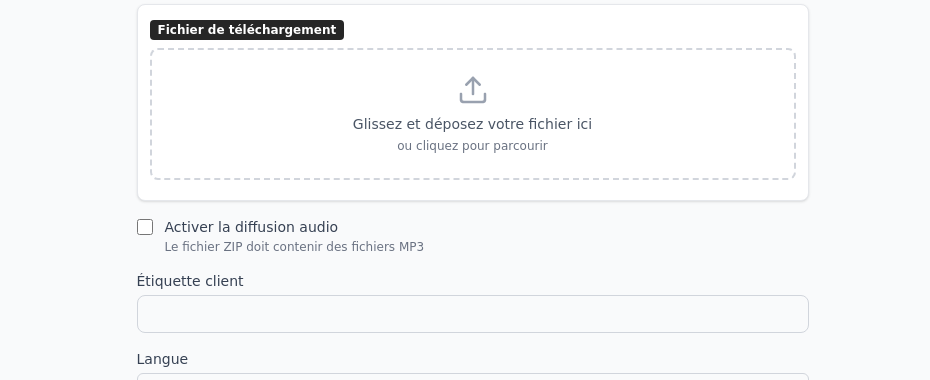
Enable Audio streaming if the ZIP file contains MP3 files. In addition to downloading the purchase, customers can listen to the tracks from their portal.
Physical product
This type adds the settings required for an item that must be shipped:
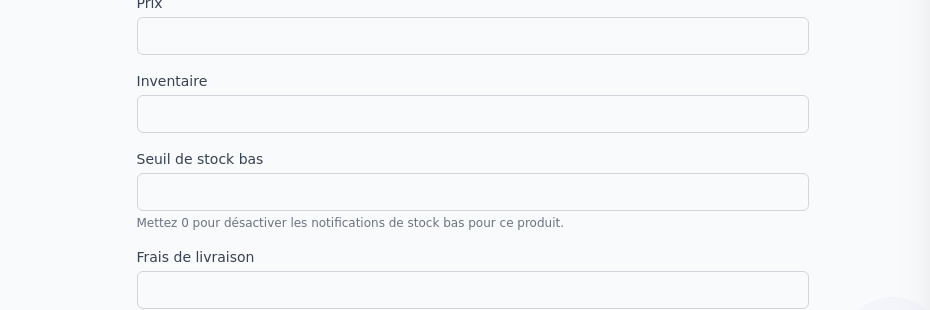
- Inventory: the number of available units, reduced with each sale.
- Low-stock threshold: the level that triggers a notification. Enter
0to disable this alert for the product. - Shipping fee: the shipping amount specific to this product.
Add images
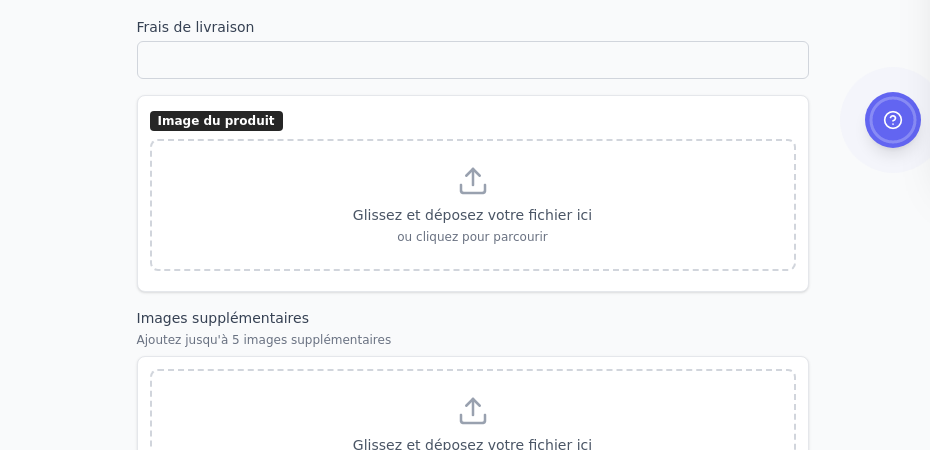
The product image is the main visual shown in the catalogue and on the product page. After uploading it, you can crop the thumbnail to a square.
Then add as many additional images as needed to show different angles, variants, or examples of use.
Request a file from the buyer
The Personalization section is useful for products created using an image, document, or text supplied by the customer.
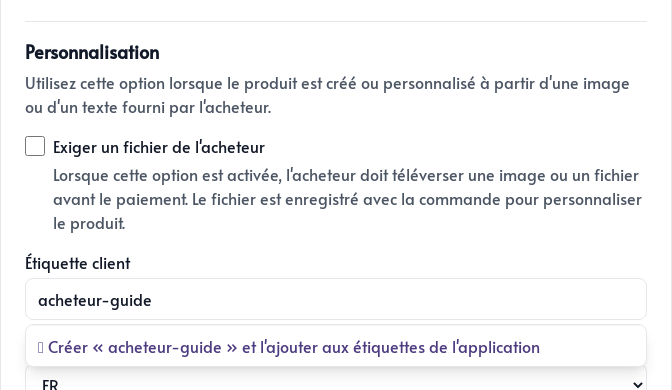
Enable Require a buyer file. The customer must upload the file before payment, and it will be stored with the order.
In the same part of the form, you can define:
- A product-specific customer tag for segmenting buyers or starting an automation
- The product’s primary language
Category, featured product, and publication
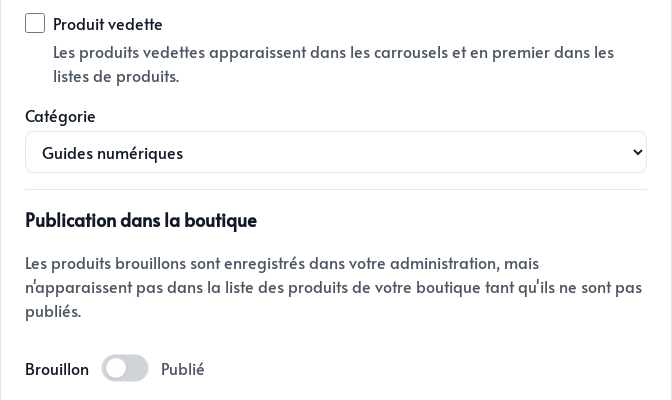
Enable Featured product to include the product in product carousels on your site.
If categories are enabled in the store settings, choose the category where the product should appear.
Finally, select the publication status:
- Draft keeps the product in the administration area without displaying it in the public catalogue.
- Published makes the product accessible to visitors.
Click Save. You can modify the product, change its category or adjust its publication at any time.