The proposals module lets you send professional quotes to your clients, track their status in real time, and have them accepted with an electronic signature. From the proposal list, click New proposal to create your first quote.
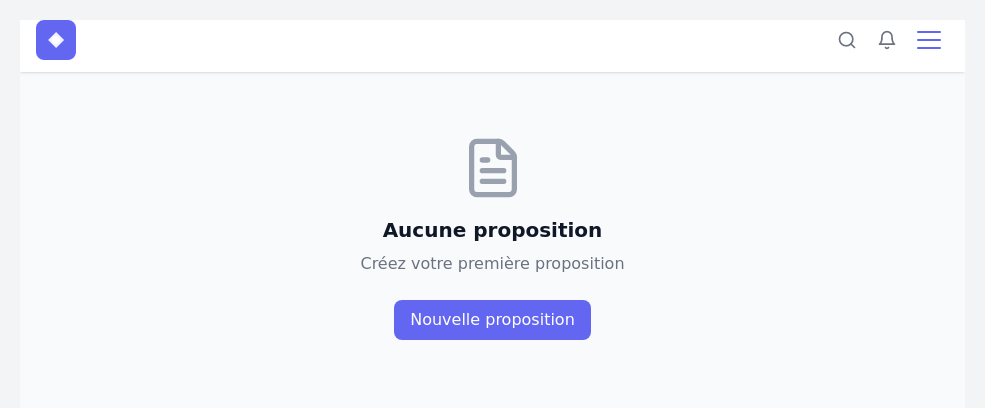
Creating a proposal
When you click New proposal, a creation form appears with the following fields:
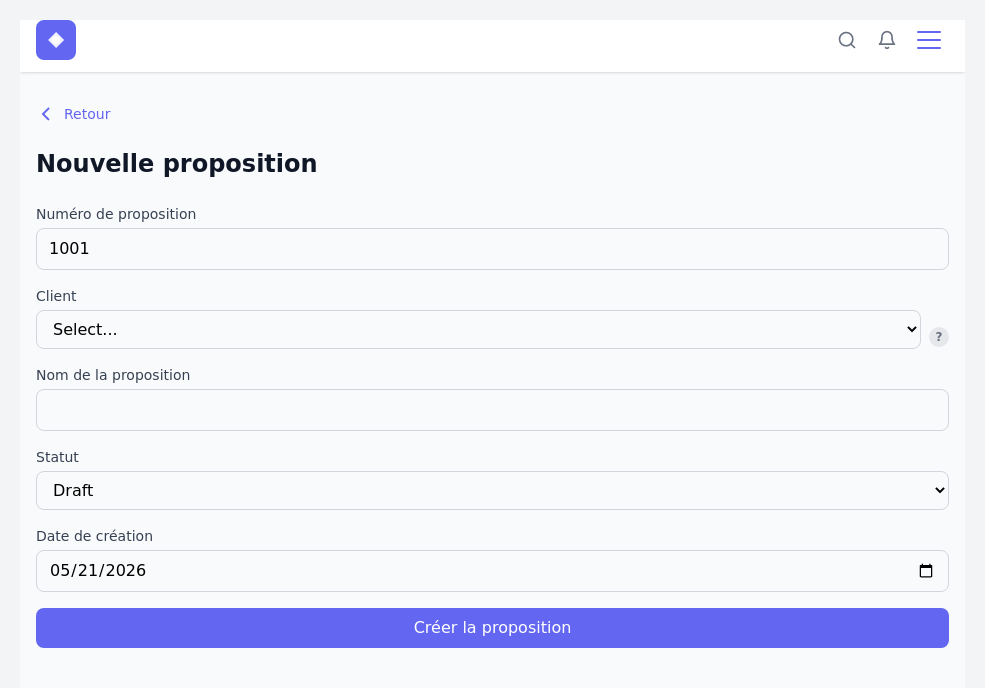
- Proposal number – a sequential number generated automatically. You can modify it if you want to keep your own numbering.
- Client – select a contact from your active clients. Only contacts marked as active clients appear in this list.
- Proposal name – a descriptive title to quickly identify the quote, for example “Website redesign” or “Social media management contract”.
- Status – the initial status is Draft. It will evolve as the process progresses.
- Creation date – pre-filled with today’s date, editable if needed.
Click Create proposal to confirm. You will be redirected to the proposal list.
Proposal list
The list displays all your proposals with their name and current status. Available statuses are:
- Draft – draft, not yet sent to the client.
- Sent – sent to the client, awaiting response.
- Accepted – accepted and signed by the client.
- Rejected – declined by the client.
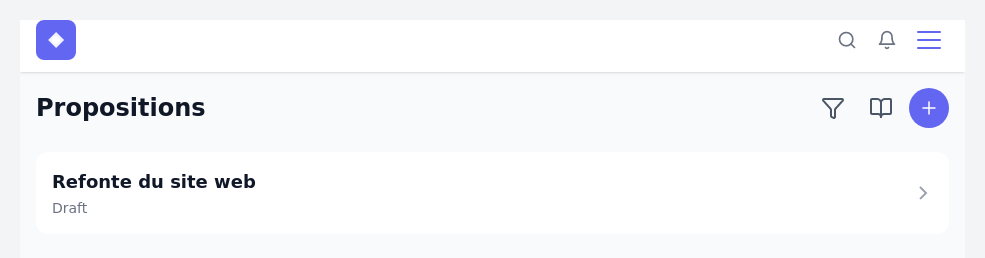
Click on a proposal to access its detail page.
Proposal detail
The detail page displays all the proposal information and gives access to the main actions.
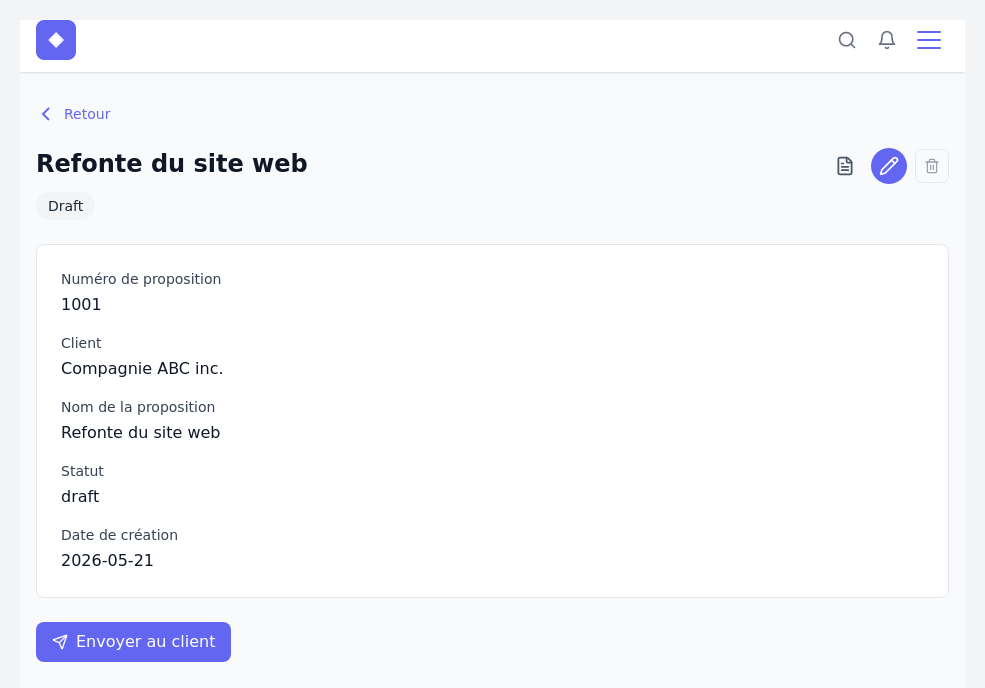
Three action buttons are available at the top right:
- View document – opens the document editor so you can compose the proposal.
- Edit – lets you change the name, client, status, or date of the proposal.
- Delete – permanently deletes the proposal.
The Send to client button at the bottom of the page sends an email to the client with the link to their proposal. The client must have a linked user account to receive and view the document. You can create this account directly from the contact record in the CRM, under the User tab.
Editing a proposal
Click the Edit button (pencil icon) to update the basic information. You can notably change the status manually – useful if you manage the process outside the platform or if you want to put a proposal back into draft.
Once your proposal is created, the next step is to compose its content in the document editor.