The proposal editor is built around content blocks. Each block is a predefined visual section, such as a cover page, budget, methodology, or team, that you customize with your own content. From the proposal detail page, click View document to open the editor.
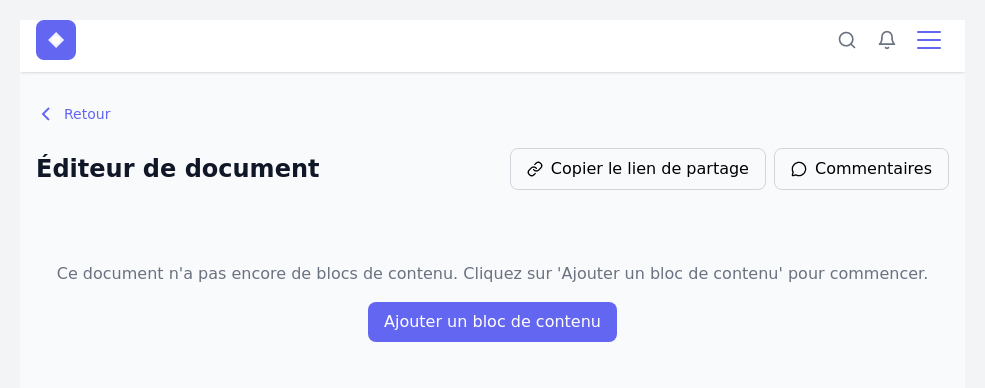
Add content blocks
Click Add content block to open the block selector. Two tabs are available:
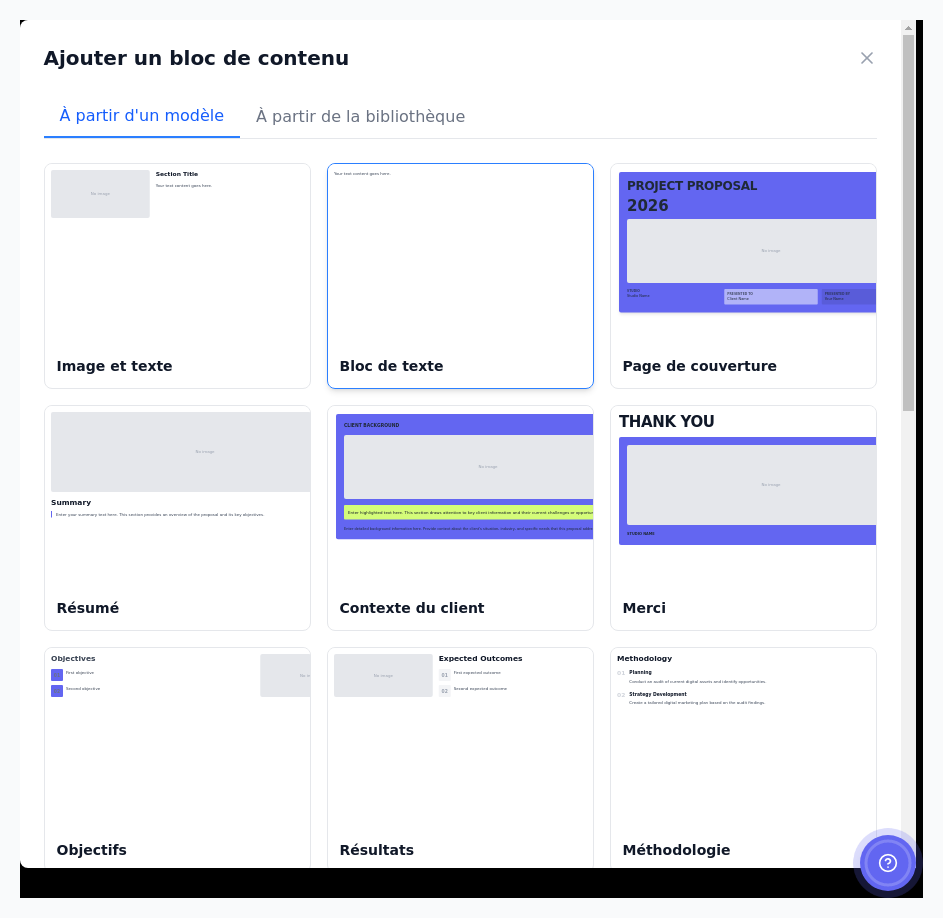
From a template
This tab provides a gallery of ready-to-use blocks covering the typical sections of a professional proposal:
- Cover page – title, year, main image, presentation of the studio and client.
- Executive summary – overview of the proposal and its objectives.
- Client context – explains the client’s needs and challenges.
- Objectives / Results – numbered list of objectives or expected results.
- Methodology – description of the work steps.
- Deliverables / Scope – list of elements included and excluded from the project.
- Budget – table of budget items and payment schedule.
- Team – presentation of team members with photo and title.
- Timeline – table of the project phases with dates and milestones.
- Terms and conditions – contractual terms of the project.
- Text Block / Image and Text – free blocks for any other content.
Click on the desired block to insert it into the document.
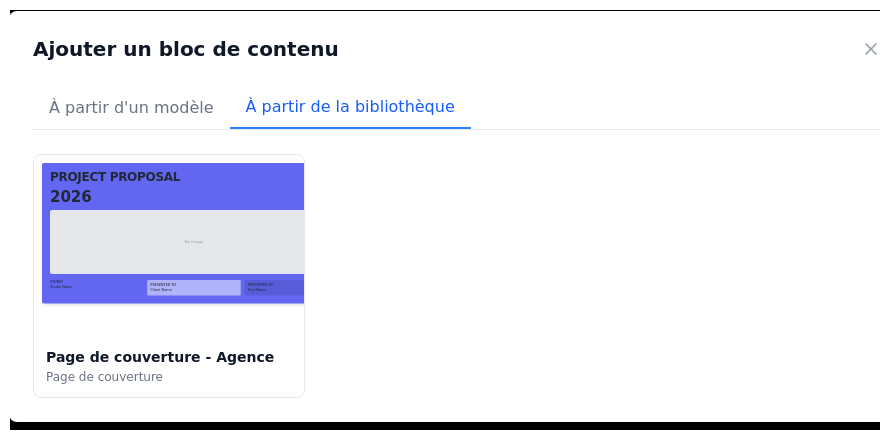
From the library
This tab displays the blocks saved in your personal library. They contain content you have already customized and can reuse from one proposal to the next, such as your agency introduction or standard intellectual property clause.
Edit a block
Once a block is inserted, click it to enter edit mode. Edit its text fields, images, and colours directly within the document.
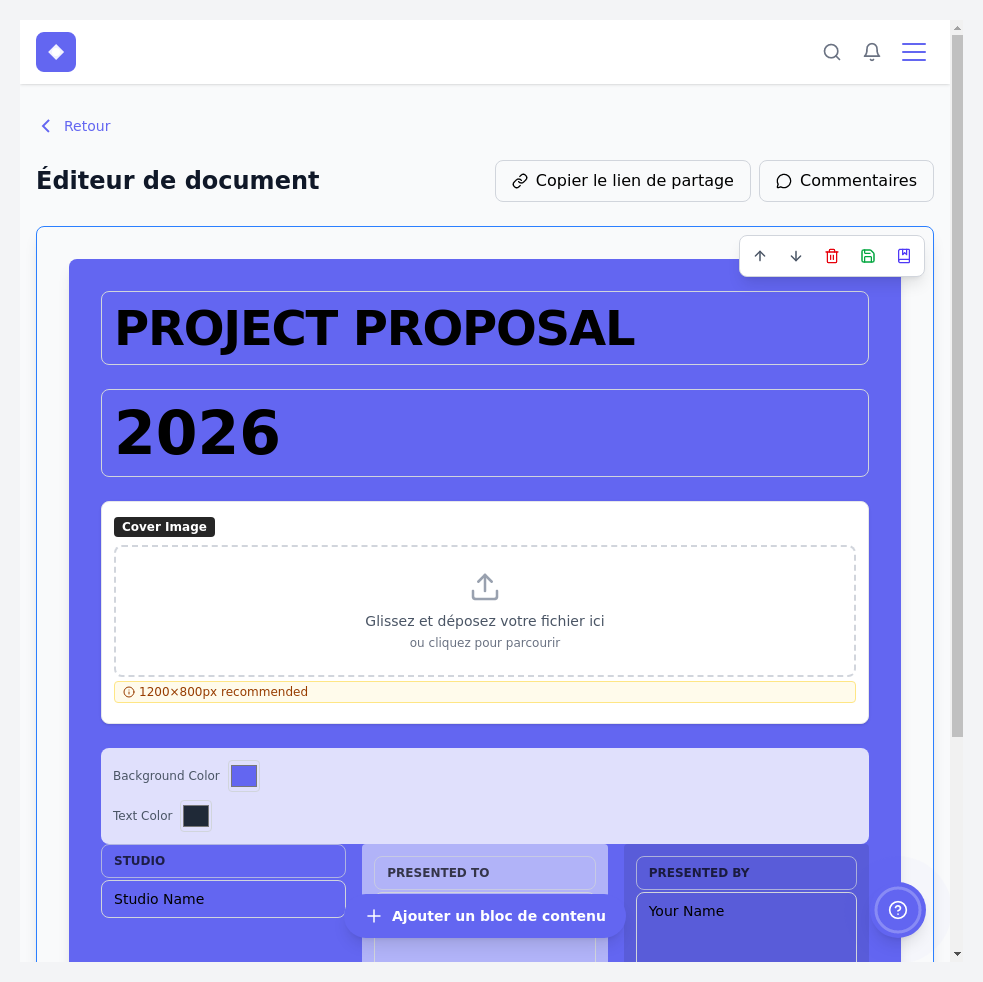
A toolbar appears at the top of the block with five actions:
- Move up / down – changes the block order in the document.
- Remove block – removes the block from the document.
- Save changes – saves the block’s content.
- Save to library – saves the customized block for reuse in future proposals.
Content library
The library is a central space to manage your reusable blocks. From the proposal list, click on Library to access it.
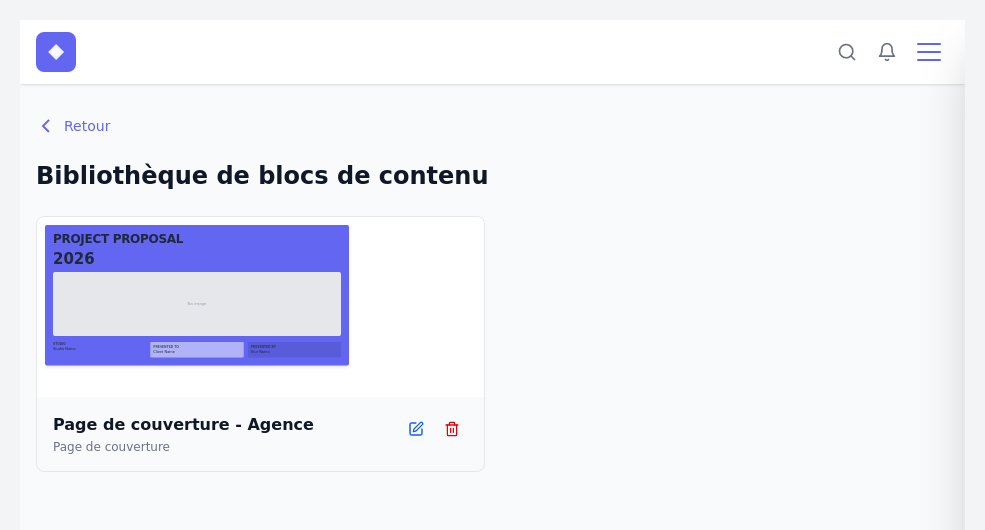
Each saved block displays a visual preview, name, and block type. You can edit or delete it at any time. You can also click Create block to prepare standard blocks directly in the library before starting a proposal.
The library is especially useful for content that changes very little between projects, such as your agency introduction, standard terms and conditions, regular team, or intellectual property clause. Instead of re-entering this information in every proposal, insert it from the library and focus on what is unique to each client.
Comments and conversations with the client
The editor includes a messaging system linked directly to the proposal. Click Comments to open the discussion panel.
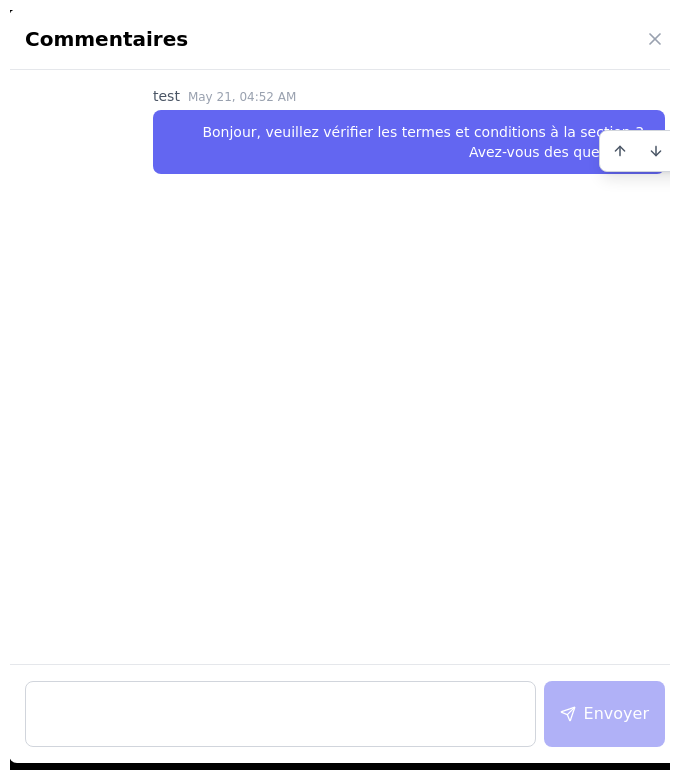
You and your client share this conversation. Use it to clarify a point, answer a question, or explain a section without leaving the platform. The client accesses it from the proposal view, and an indicator on the Comments button shows new unread messages.
Copy the sharing link
Once the document is ready, Copy sharing link generates a secure link for the client. It opens the client view, where they can read the proposal, ask questions, and sign it. You can also use Send to client from the proposal detail page to have Parle email the link automatically.