When you click Send to client from the proposal detail page, Parle automatically emails the client a secure link. The client does not need to remember a password and can open the proposal directly from the email.
What the client sees
The client view presents the proposal’s blocks on a clean page without editing tools. Clients can scroll through each section in the order you arranged them.
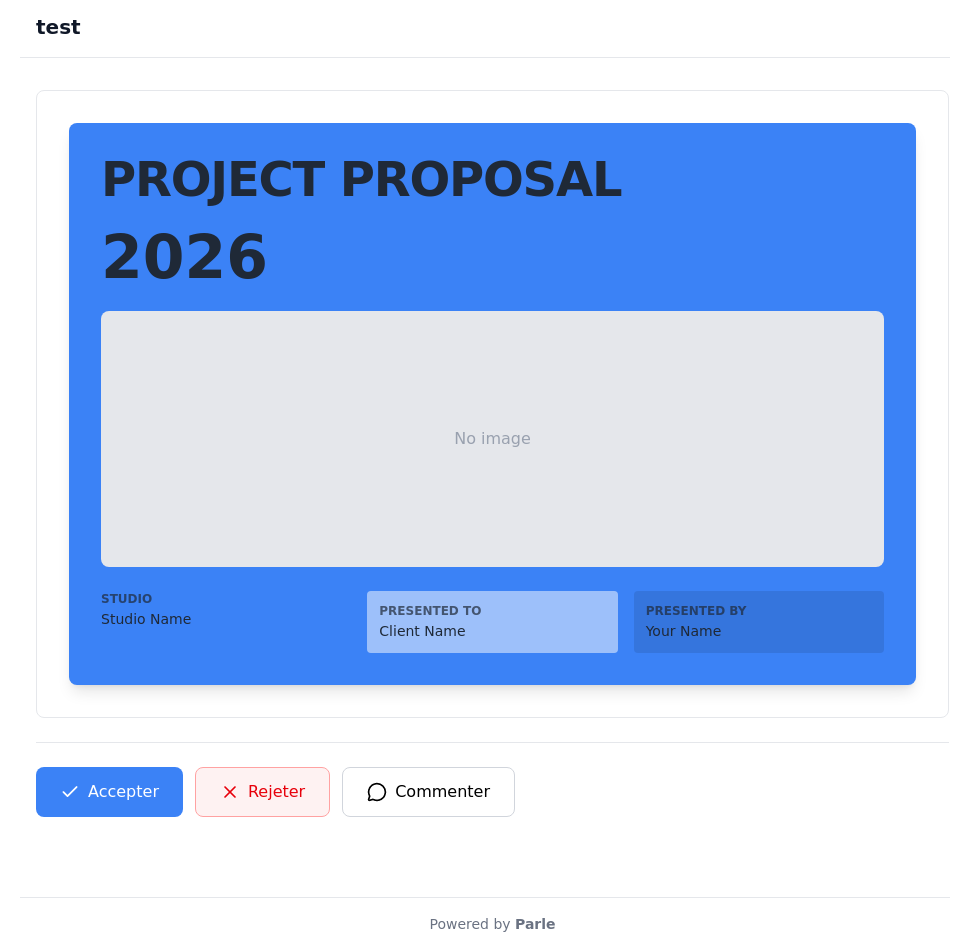
At the bottom of the page, three action buttons are available:
- Accept – initiates the electronic signature process.
- Reject – declines the proposal and updates its status in your dashboard.
- Comment – opens the thread to ask a question or request an amendment.
Electronic signature
When the client clicks Accept, a signature panel appears.
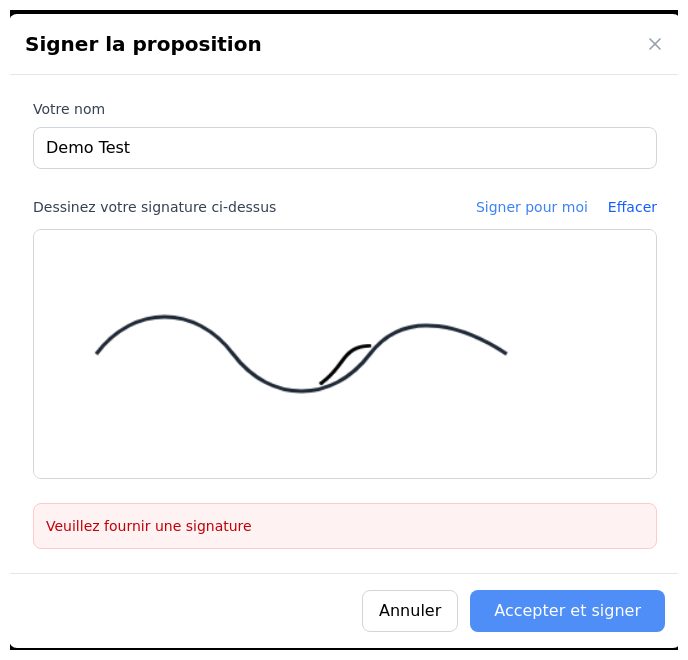
The client must complete two fields:
- Name – entered in the text field at the top of the panel.
- Signature – drawn by hand in the signature area or generated automatically by clicking Sign for me.
Once the signature is added, the client clicks Accept and sign. The proposal is immediately marked Accepted in Parle, and the signature date is recorded.
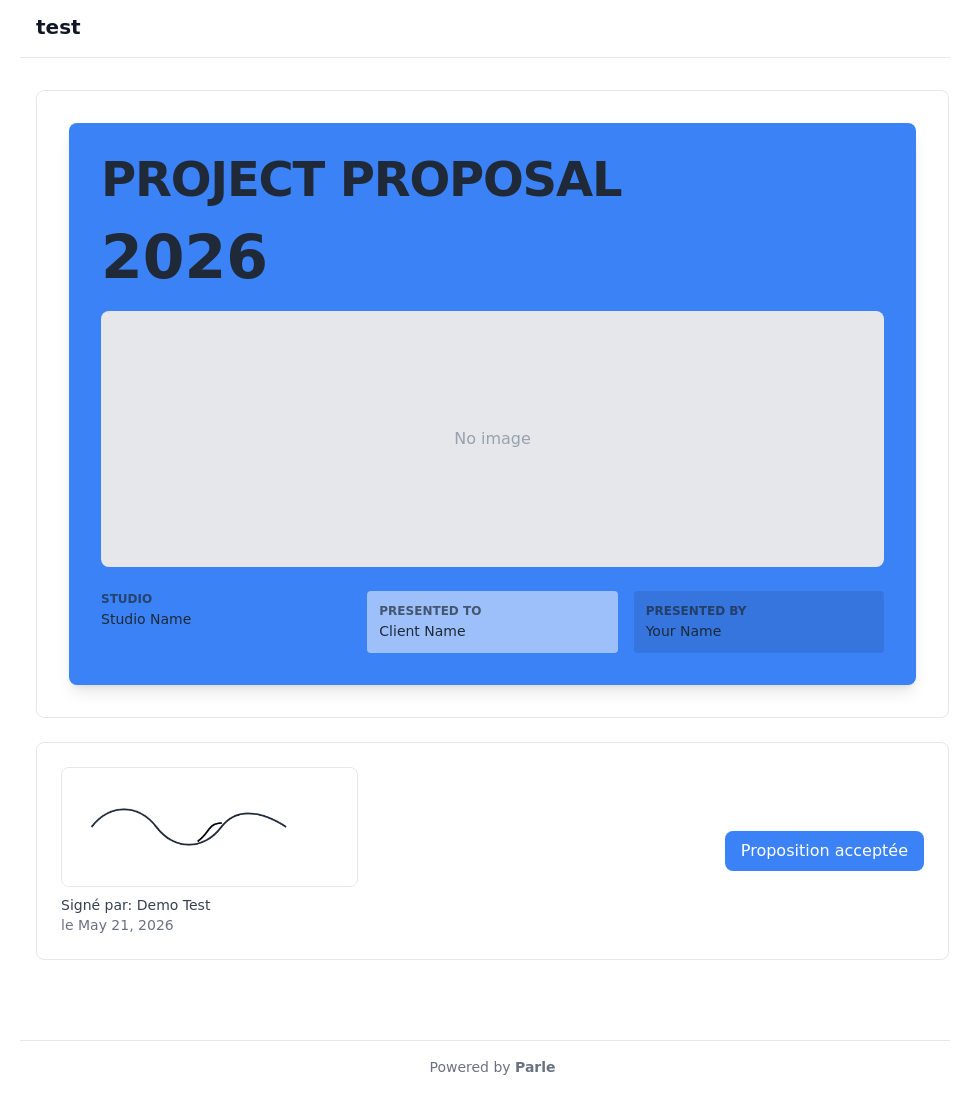
The confirmation displays the signer’s name and acceptance date. You receive a notification, and the proposal status in your list changes automatically to Accepted.
Comments from the client view
The client can use Comment at any time to open the conversation. Messages also appear in the Parle document editor under Comments. Use this space to clarify anything before the client decides, such as a budget question, a request for details about the project scope, or a timeline adjustment.
This centralized channel avoids scattered email exchanges and keeps the entire proposal conversation in one place.
Track the status
As soon as a client interacts with the proposal by accepting, rejecting, or leaving a comment, the proposal list updates in real time. No manual tracking is required.