The welcome message tells callers how to reach the correct department or enter a direct extension. Open the Welcome message tab in the phone settings to prepare it.
Choose the welcome message
Parle can read a written message automatically.
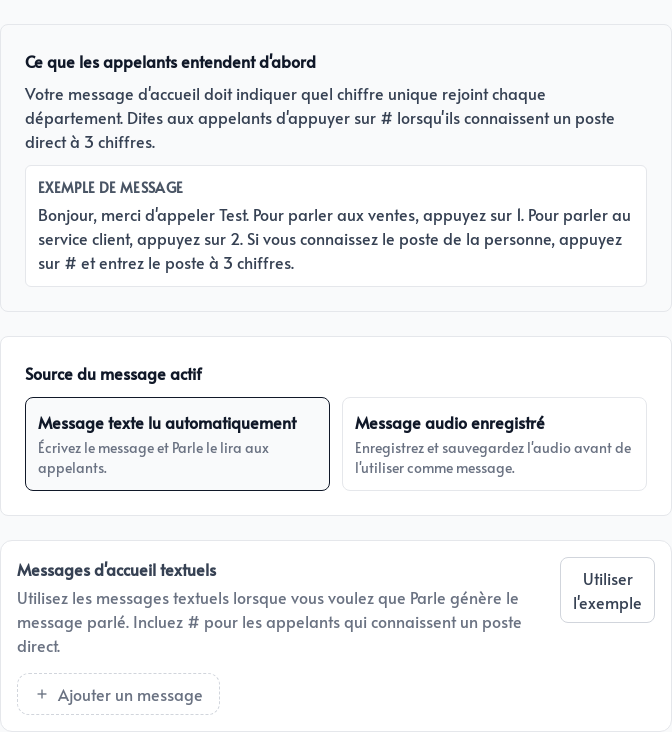
You can also record your voice directly with the browser microphone.
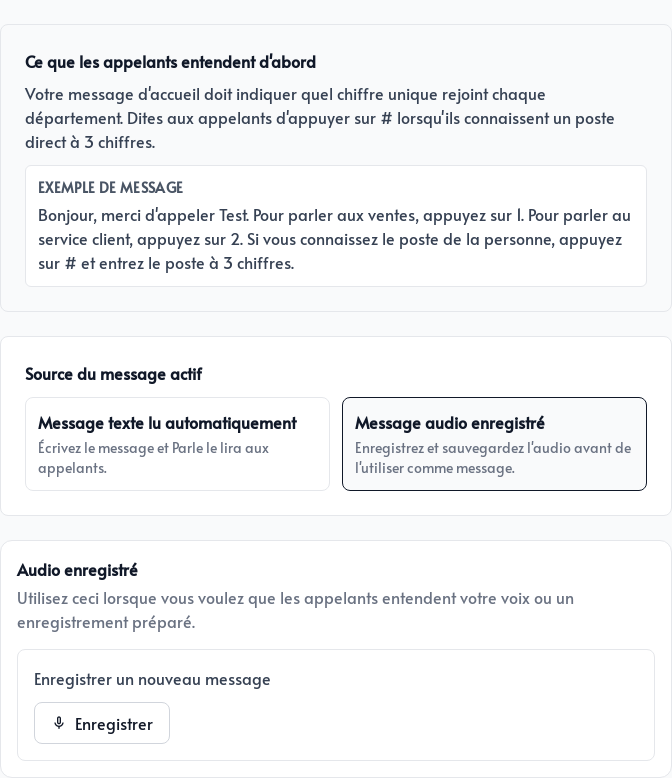
When a recorded message is selected as the active source, it plays instead of the written message. Name the departments available through single keys and explain that callers can press # to enter a three-digit direct extension.
How an incoming call works
When someone calls your Parle number:
- Parle reads the written message or plays your recording.
- The caller presses a number to reach a department, or
#to enter a direct extension. - Parle calls the associated destination while the caller hears the hold music.
- The person who answers presses
1. Any other response declines the call. - If accepted, Parle connects both people.
- If the destination declines, does not answer, or is unavailable according to the extension schedule, the caller hears the destination’s custom voicemail greeting or the default greeting.
View voicemail messages
The main page of the module presents the tabs Voice Messages and Text Messages.
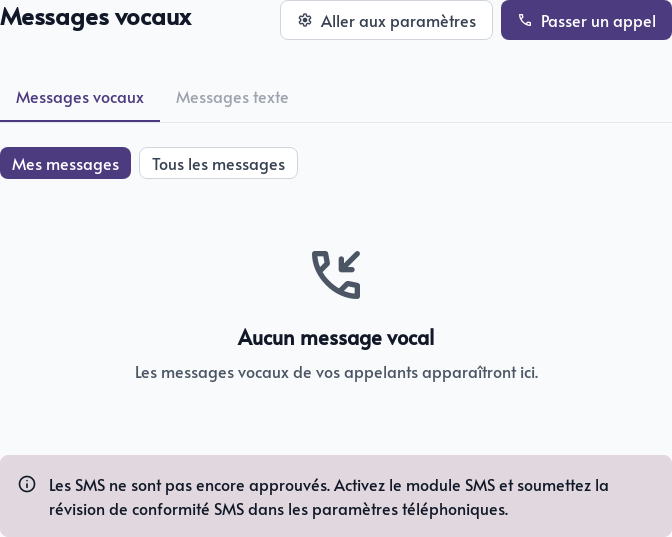
Someone associated with a destination can use My messages to view their own voicemail. Administrators can choose All messages to access messages from every destination.
When a caller leaves a message:
- The email address configured for the destination receives a notification
- The notification contains a direct link to the MP3 file
- The message appears in the Phone module list
Voicemail files are kept for 30 days. Download any message you need to archive before this deadline.
Place a call using your business number
From the Phone module, click Make a call. Choose your destination number and enter the Canadian number you want to reach.
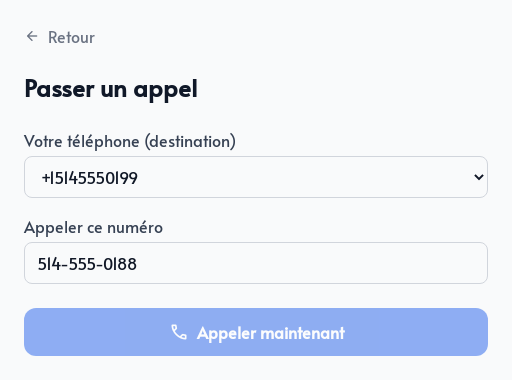
When you click Call now, Parle:
- First calls your destination phone
- Then calls the person you want to reach
- Connects the two calls
The person you call sees your Parle business number, never your personal mobile number.