Open the module menu, then choose Invoicing. The list shows your invoices and their status. Use the filter to quickly find pending, overdue, or paid invoices.

Before starting, review your application’s currency and tax settings . To accept credit cards, you must also connect your Stripe account.
Create an invoice
Click New invoice, then fill in the main information.
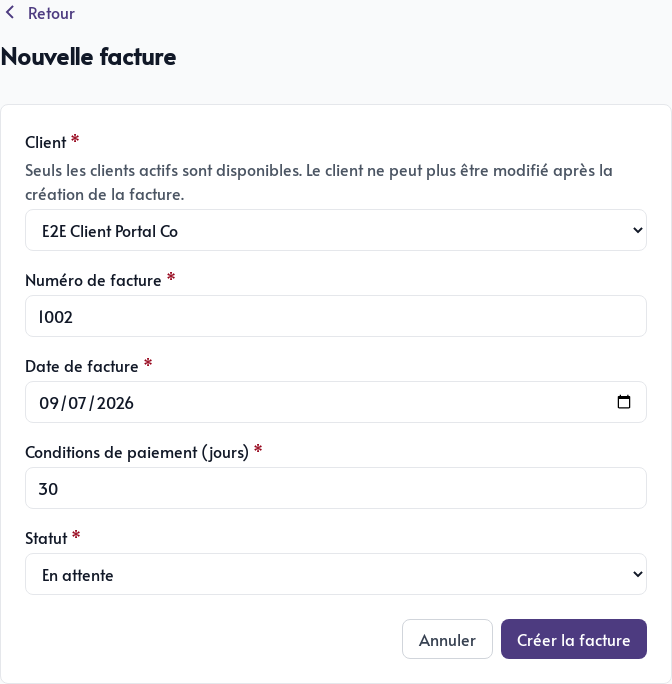
- Client: choose a contact marked as an active customer in the CRM. The client cannot be changed after creating the invoice.
- Invoice number: review the next number suggested by Parle.
- Invoice date: enter the issue date.
- Payment terms (days): enter how long the client has to pay. Parle calculates the due date from this value.
- Status: choose an initial status, usually Pending.
If the contact does not appear, open their CRM record and enable Active customer.
Click Create invoice to open its detail page.
Build the document
From the invoice, click Edit document. The editor already contains the essential blocks: contact details, billing information, line items, totals, and a note.
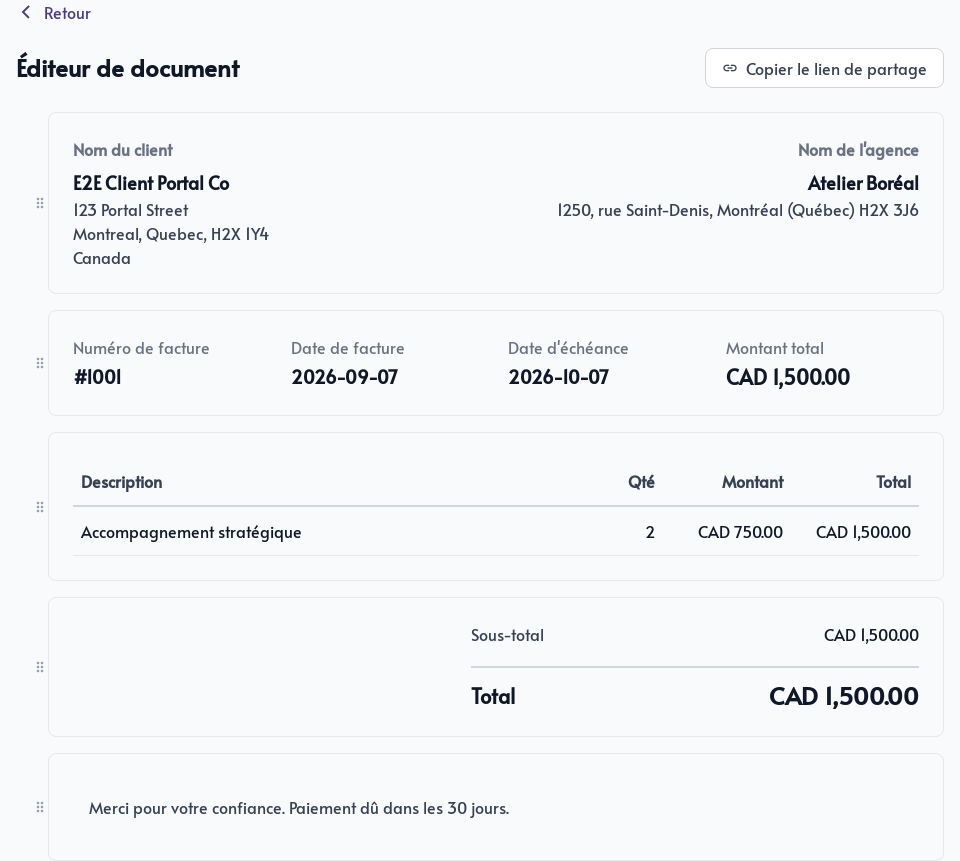
Click on a block to modify it. In the row table, add each product or service with its description, quantity and unit amount. The subtotal and total are automatically recalculated.
The left handles are used to reorder blocks. You can also add other blocks of content or save a block in the library to reuse it in future documents.
Save changes to each block before leaving the editor.
Send and track the invoice
The detail page shows the invoice’s client, number, date, payment terms, and status.
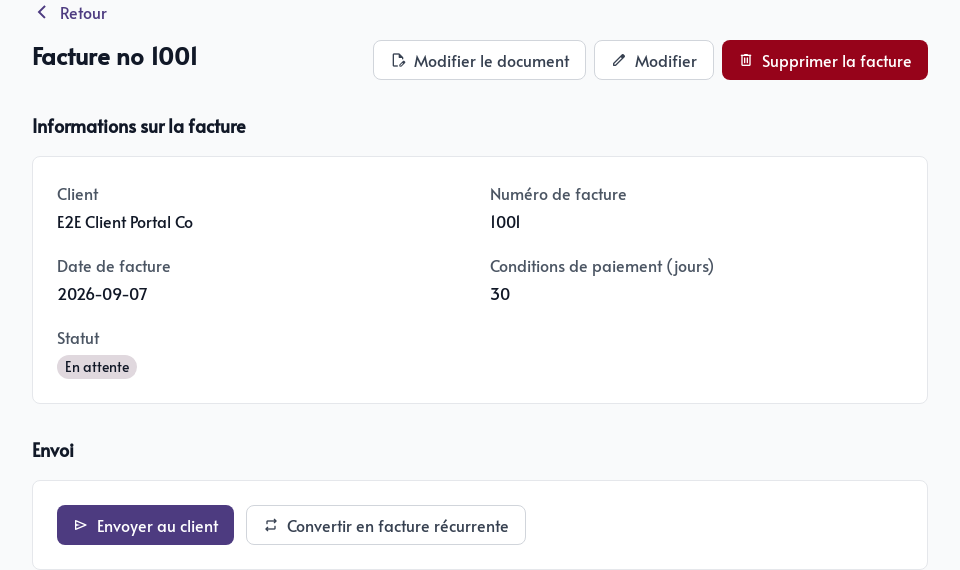
Click Send to client to send the client a secure link to the document. Other actions let you edit the basic information, reopen the editor, or delete the invoice.