Under Tools > Cart discounts, open the Promotions tab, then click Add promotion.
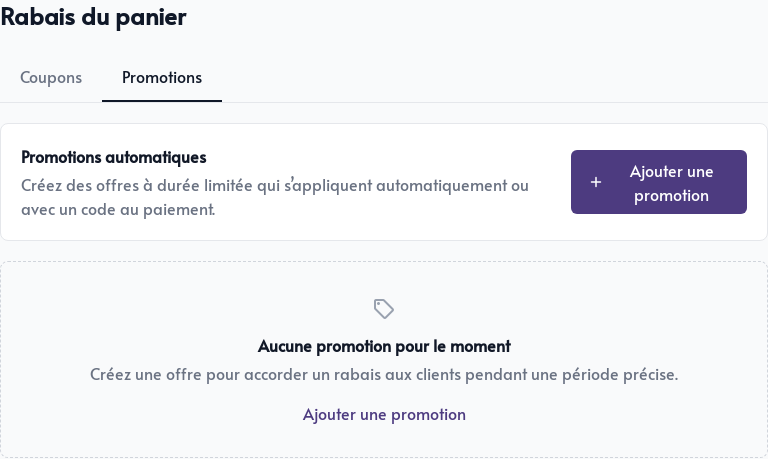
An advanced promotion gives you control over its schedule, trigger, and eligible items.
Set the discount
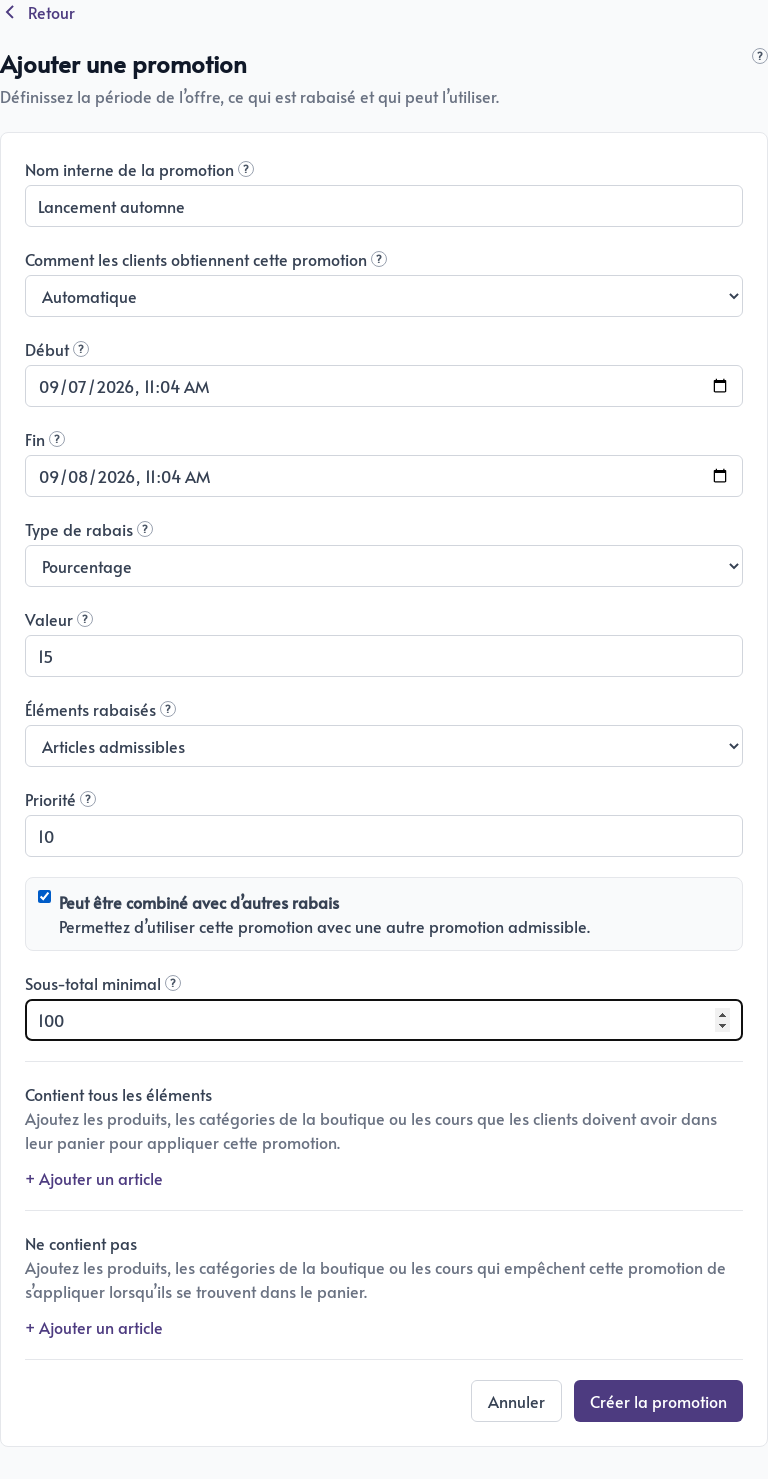
Complete the main settings:
- Internal promotion name: a name visible only in the administration area.
- How customers get this promotion: choose automatic application or a discount code.
- Starts and Ends: the period when the offer can be applied.
- Discount type and Value: a percentage or fixed amount.
- Discounted items: the entire order, eligible items, or a specific selection.
- Priority: the evaluation order when several promotions may apply.
- Can be combined with other discounts: allows this offer to coexist with another eligible promotion.
- Minimum subtotal: the amount the cart must reach before receiving the discount.
Select conditions
Under Contains all items, add the store products, categories, or courses that must be in the customer’s cart. You can also require a minimum quantity.
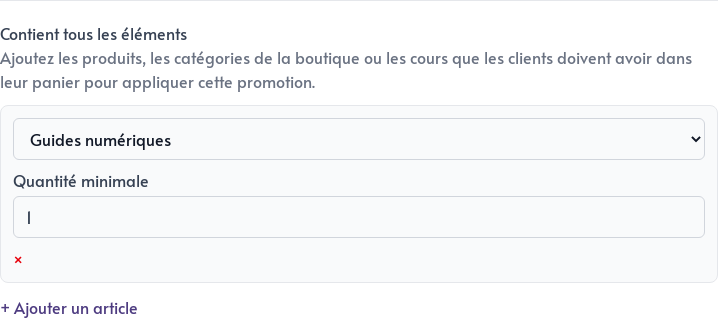
The Does not contain section works in the opposite way: add any items that should prevent the promotion from being applied when they are in the cart.
These conditions can offer 15% off when a customer purchases a product from a particular category while excluding a specific course, for example. Review the dates, priority, and combination rules, then click Create promotion.