Over time, your contact list may contain hundreds or thousands of entries. Filtering queries let you segment the list using any combination of criteria and save those segments for one-click reuse.
Accessing queries
From the CRM list, click the filter icon in the toolbar. A menu displays your saved queries and an option to create a new one.
Click Create a new query to open the query builder.
Create a query
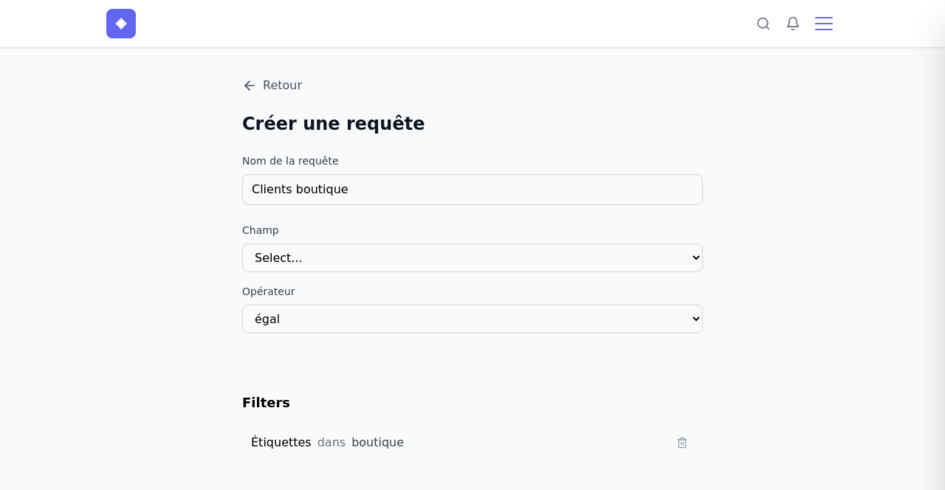
A query consists of a name and one or more filters. Each filter combines three elements:
- Field – the field being filtered, such as email, city, tags, or active customer
- Operator – the condition to apply, as listed below
- Value – the value used for comparison
Select a field and operator, enter a value, and click Add filter. The filter is added under Filters at the bottom of the page. Repeat these steps to combine criteria. Every filter in a query applies simultaneously using AND logic.
Name your query in the Query name field, then click Save query.
Available operators
| Operator | Meaning |
|---|---|
| equal | The field value matches exactly |
| not equal | The field value is different |
| less than | The numerical value is lower |
| less or equal | The numerical value is lower than or equal to the comparison value |
| greater than | The numerical value is higher |
| greater or equal | The numerical value is higher than or equal to the comparison value |
| in | The value is part of a list |
| not in | The value is not part of a list |
List fields: tags
Tags are a list field because a contact can have several. To filter by tags, use in or not in, not equal or not equal.
This is a common source of confusion. Using equal with a tag returns no results even when a contact has that tag, because the operator compares the entire field rather than each value in the list.
Correct examples:
- Tags in
store– contacts that have thestoretag - Tags not in
unsubscribed– contacts that do not have theunsubscribedtag
Incorrect example:
- Tags equal
store– does not work correctly
Use a saved query
From the CRM list, click the filter icon. Your saved queries appear in the menu. Click one to apply it.
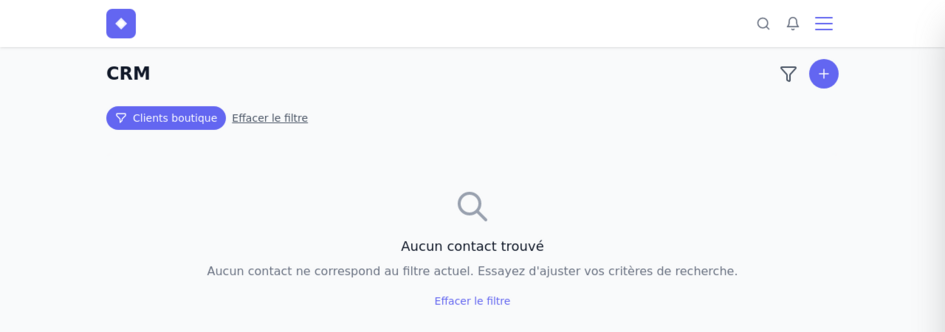
The active query appears as a pill at the top of the list. Click Clear filter at any time to return to the complete list.
Combine multiple filters
You can combine as many filters as you want in the same query. Some useful examples:
- Active clients in Quebec: Active customer equal
true+ Province equalQC - Prospects without the newsletter tag: Tags in
prospect+ Tags not innewsletter - Montreal clients with a specific tag: City equal
Montréal+ Tags invip