The CRM is at the heart of Parle. Every other module, including Store, Courses, Proposals, and Invoicing, connects to it. Each buyer, student, or client who interacts with your platform automatically creates or updates a contact record.
The CRM module is free and available in all apps. If you have just activated it, your list will be empty.
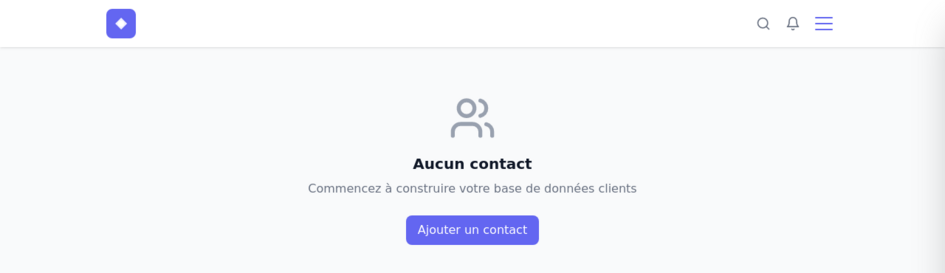
Create a contact
Click Add contact, or use the + button in the toolbar, to open the form.
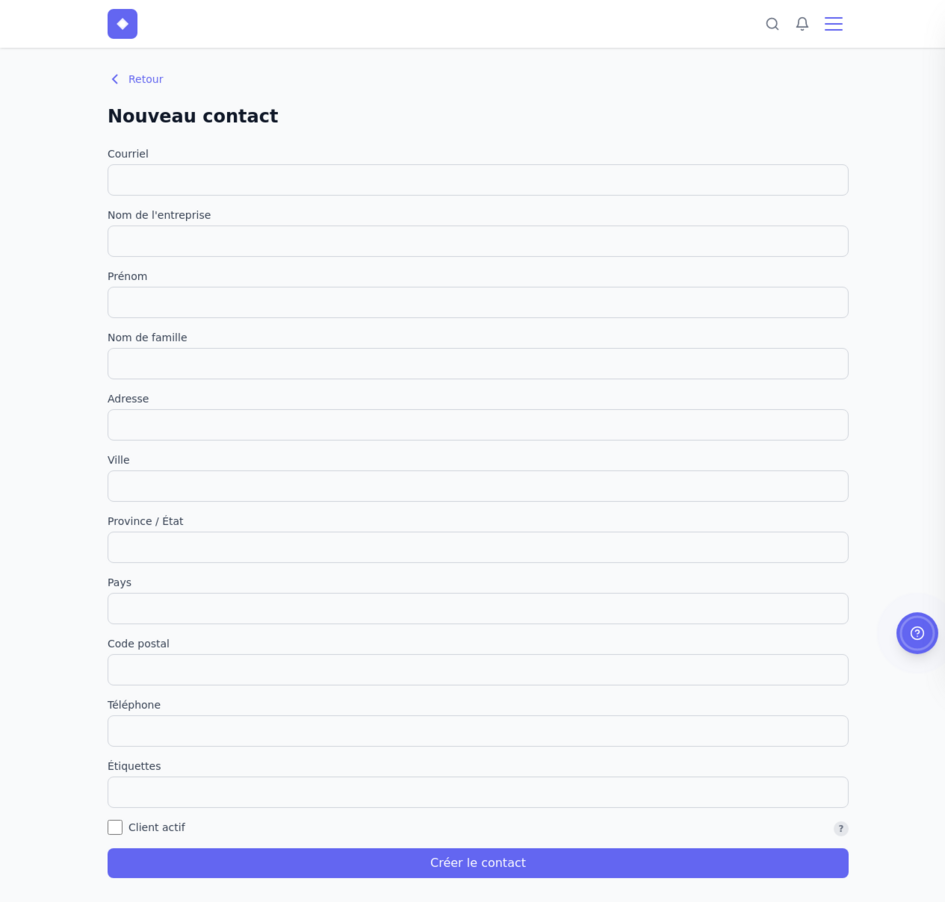
The available fields are:
- Email – the only required field and the contact’s unique identifier.
- Company name, First name, Last name – identify the person and their organization.
- Address, City, Province/State, Country, Postal code – useful if you ship products or create invoices.
- Phone – for your own notes or for the merge tags in your documents.
- Tags – enter one or more tags and press Enter after each one. Tags help you segment contacts and trigger automations.
- Active customer – an important checkbox explained below.
Active customer option
A contact marked as Active customer appears in the drop-down list when creating a proposal or invoice. If the box is not checked, the contact exists in your CRM but will not be offered when creating these documents.
Enable this option for clients you do business with regularly. Contacts created automatically through store purchases or course enrolments are not marked as active customers by default.
The contact list
Once contacts have been created, the list displays the company and person name for each entry.

Two buttons appear in the toolbar:
- Filter applies a filtering query. See Queries and filters .
- + creates a new contact.
Details of a contact
Click a contact to open its record, which contains their complete information and several tabs.
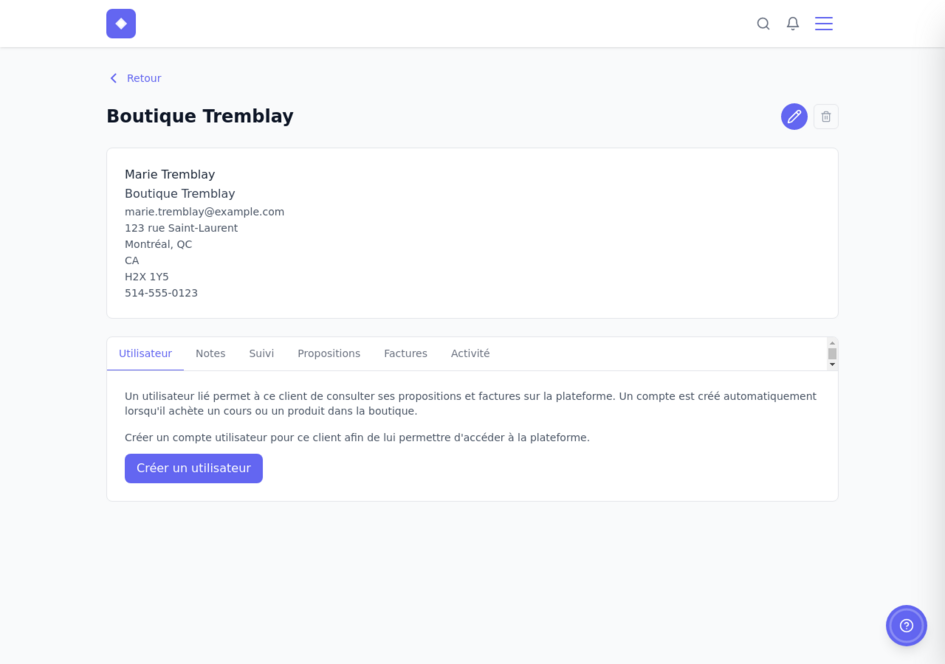
Use the pencil and trash buttons in the upper-right corner to edit or delete the contact.
User tab
This tab links the contact to a user account on the platform. A linked user can sign in to the client portal to view their proposals, invoices, orders, and courses.
An account is created automatically when a contact buys from your store or enrols in a course. To give access to a contact you created manually, click Create user. A password is assigned, and you can email the sign-in details or ask the contact to use the forgotten-password feature.
Notes tab
The Notes tab lets you add free-form notes to the contact, such as call summaries, important details, or relationship context.
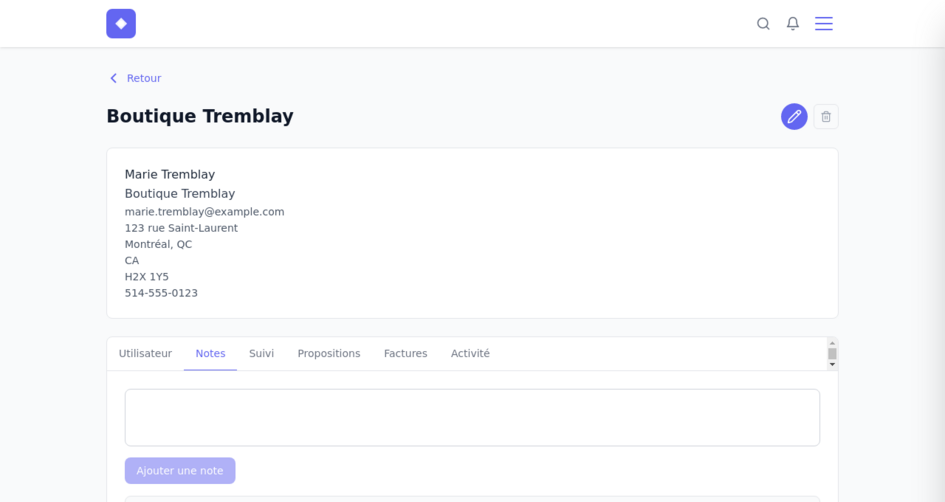
Type your note in the field and click Add a note. The notes are displayed in reverse chronological order. You can add as many as you want.
Follow-up tab
The Follow-up tab lets you create reminders or tasks associated with the contact.
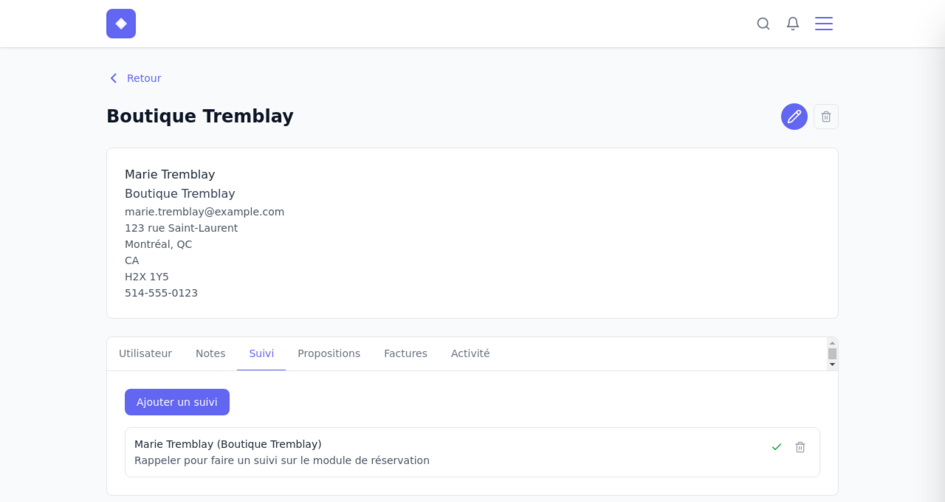
Click Add follow-up to create a task, then enter its details and date. Once finished, use the green checkmark to mark it complete. Use the trash button to delete it.
Activity tab
The Activity tab displays an automatic history of the contact’s interactions with your platform, including store purchases, course enrolments, and accepted proposals.
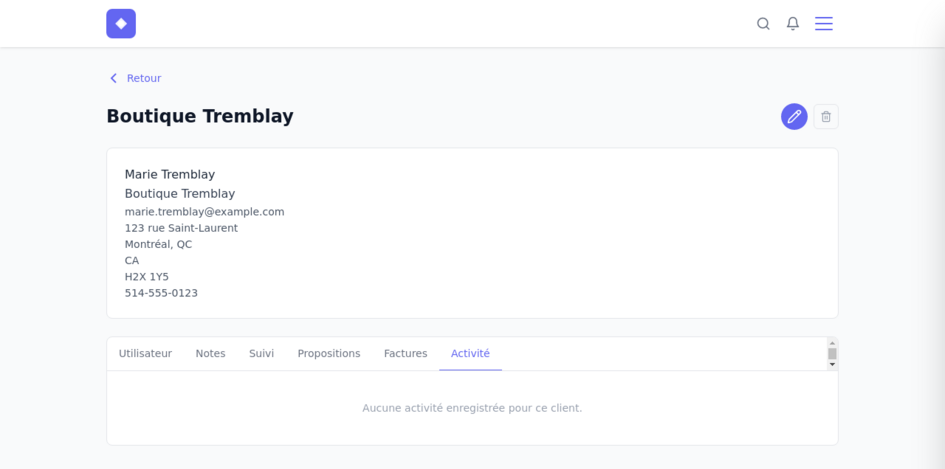
Unlike notes, activity is generated automatically by other Parle modules. It provides a running history of your relationship with the client.