Progress tracking helps you identify students who are moving forward and those who may need a reminder or assistance.
Open course progress
From the Courses module:
- Click the gear icon to open Course settings.
- Find the course you want to review.
- Click on the user icon on the right of the course.
The Student progress page displays one row for each enrolment.
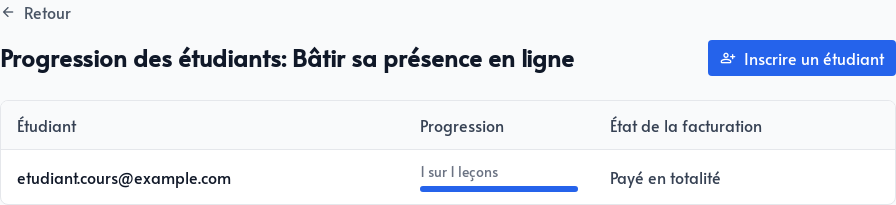
You see:
- the student’s email address;
- the number of lessons completed out of the total number;
- A bar representing their progress
- Their billing status, such as Paid in full, Active, Payment failed, or Completed
How a lesson is counted
A lesson is marked complete when the student opens it from the course outline. The empty circle beside the lesson becomes a checkmark, and the course percentage is recalculated automatically.
Quiz and test answers appear in the lesson content, but course progress primarily measures opened lessons. Students do not need to pass a quiz for the lesson to count toward their progress.
You do not need to update anything manually. Refresh the progress page to see the latest activity.
Use progress in your follow-up
The number of completed lessons provides a quick overview, not a measurement of study time. Use it as a starting point for follow-up:
- Send a reminder to people who have not started
- Congratulate those who reach the halfway point
- Offer help to someone whose progress has stopped
- Confirm that their billing status still permits course access
To see the same experience as a student, open the portal with a test account and follow the steps in What your students see .