Chapters give your course a natural order. They can represent modules, weeks, or the major steps toward an outcome. Each chapter contains one or more lessons.
Add a chapter
Open the Courses module, choose the course you want to organize, then click Add chapter.
Give it a Title and, if desired, a Short description explaining what students will find in this section.
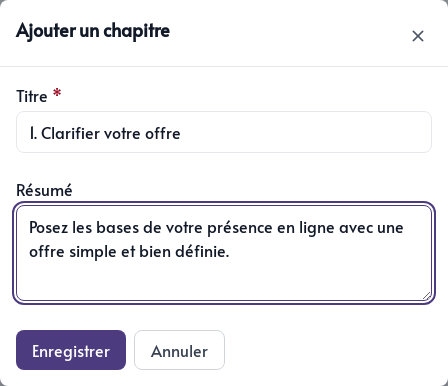
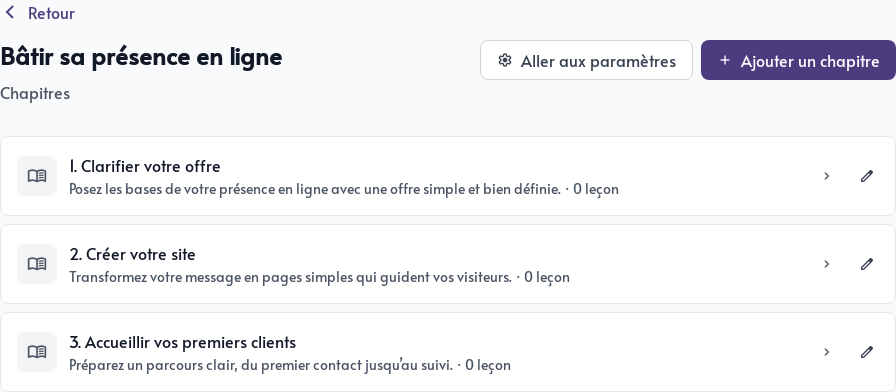
After saving, the chapter appears in the course. Use the pencil icon on the right side of its card to change the title or description.
Create a lesson
Click a chapter to open it, then click Add lesson. The course and chapter are already selected in the form.
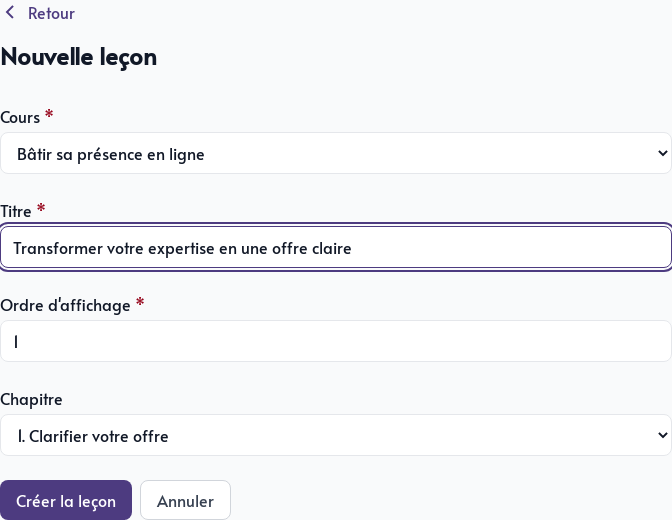
Complete the following fields:
- Title – the name the student will see in the course plan.
- Display order – the lesson’s position in its chapter. Enter
1to place it first. - Chapter – select another chapter before saving if needed.
Click Create lesson. From its detail page, you can change its information, delete it, or open its content.
Compose the content of a lesson
From the lesson detail page, click the document icon labelled Open content. An empty document prompts you to add your first block.
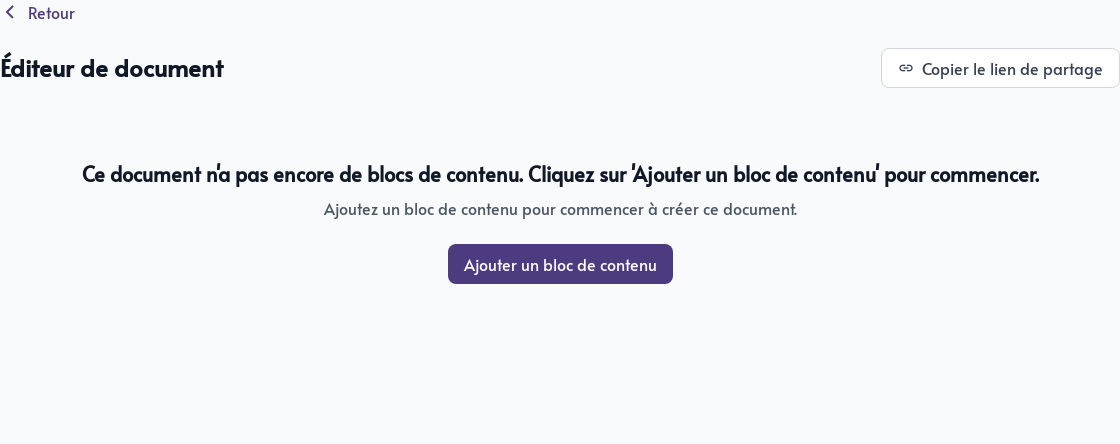
Click Add content block to choose the right format for each part of the lesson.
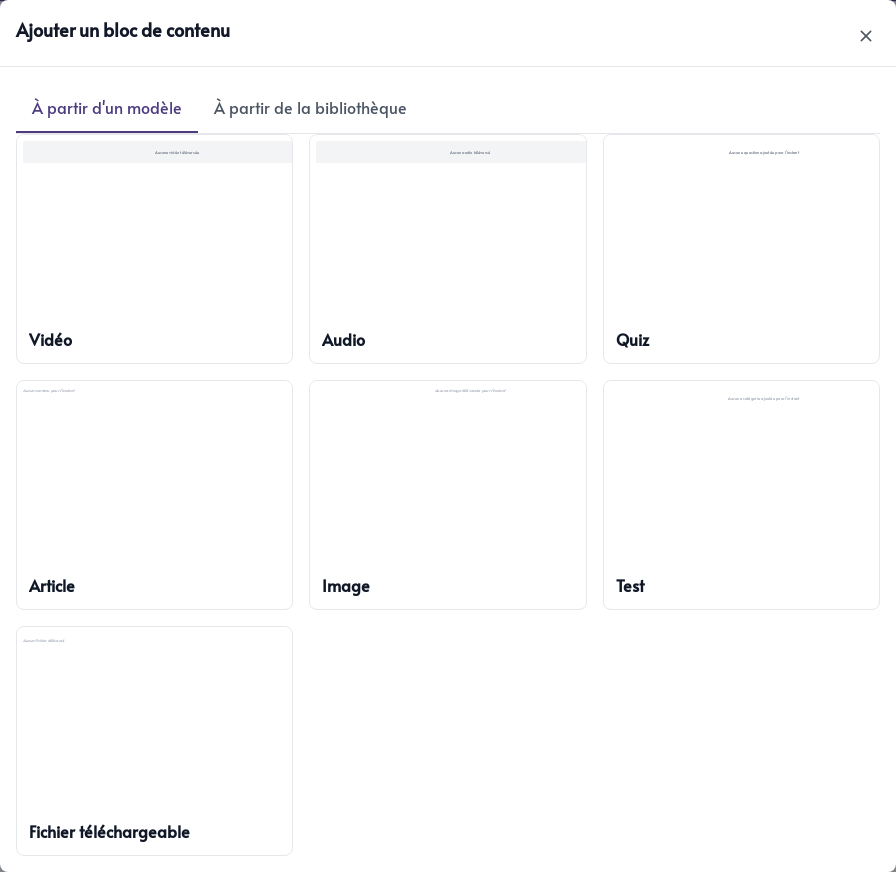
Available templates include:
- Video – upload a video to present or demonstrate your subject matter.
- Audio – add an audio segment students can listen to in the lesson.
- Quiz – ask multiple-choice or true-or-false questions, choose the correct answer, and allow another attempt if needed.
- Article – write content with headings, paragraphs, lists, and formatting.
- Image – add a visual, diagram, or example.
- Test – build an assessment with categories, scores, and results based on the answers.
- Downloadable file – share a PDF, such as an exercise book or reference sheet.
Videos, audio files, images, and PDFs use your account storage space.
Edit and save a block
Click on a block to edit it directly in the page. Each block type displays its own fields and options.

A quiz can contain several questions, correct answers, and feedback for each choice.
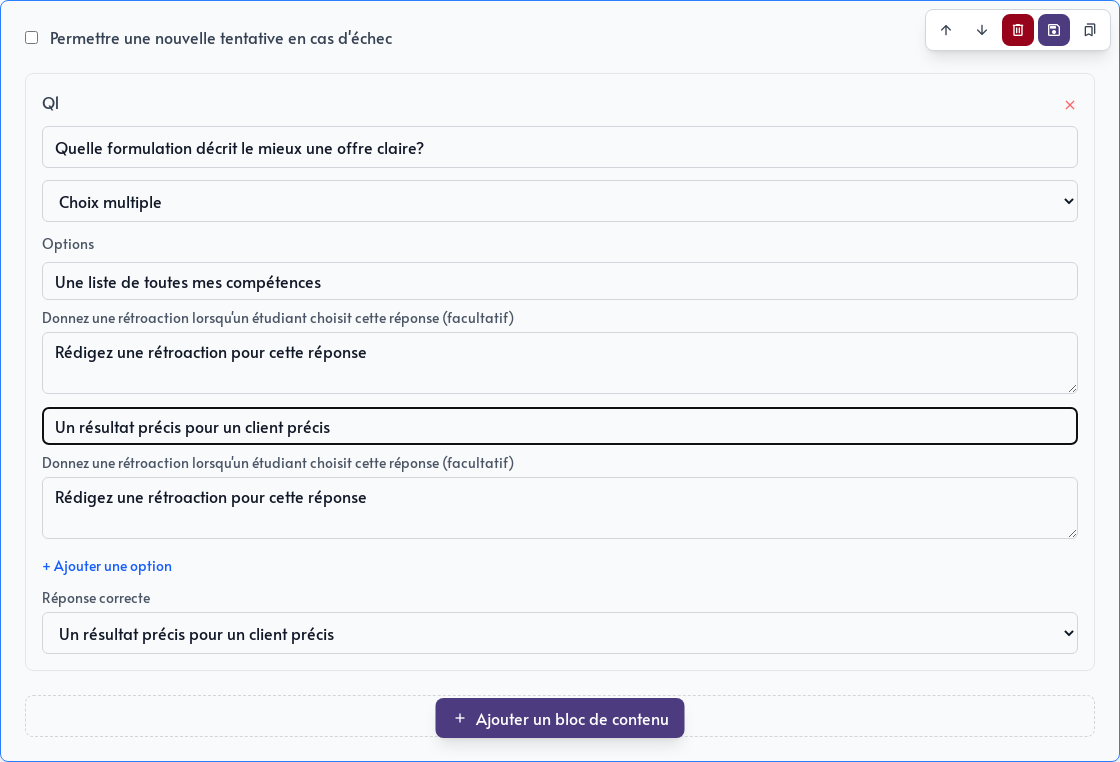
Use the block toolbar to:
- Move it up or down
- Delete it
- Save its changes
- Save it to your content library for reuse in other lessons
Save each block after making changes. You can combine several formats in one lesson, such as a video, short article, PDF, and review quiz.