A booking page represents a type of appointment, such as a discovery call, consultation, or follow-up session. You can create an unlimited number of pages, each with its own rules.
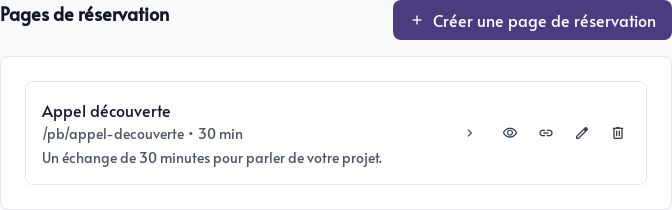
From Booking settings, click Create a booking page.
Set appointment details
In the Details tab, enter the main information:
- Title: the name visitors see for this booking option.
- Short description: a brief explanation of the appointment.
- URL: the unique address added after
/pb/. - Duration: the amount of time reserved in both calendars.
- Do not create an online meeting: Leave this option disabled to automatically create a Google Meet or Microsoft Teams meeting.
- Booking notice: the minimum number of days required before an appointment. Enter
0to allow same-day bookings. - Buffer between appointments: time reserved before and after an appointment to avoid back-to-back meetings.
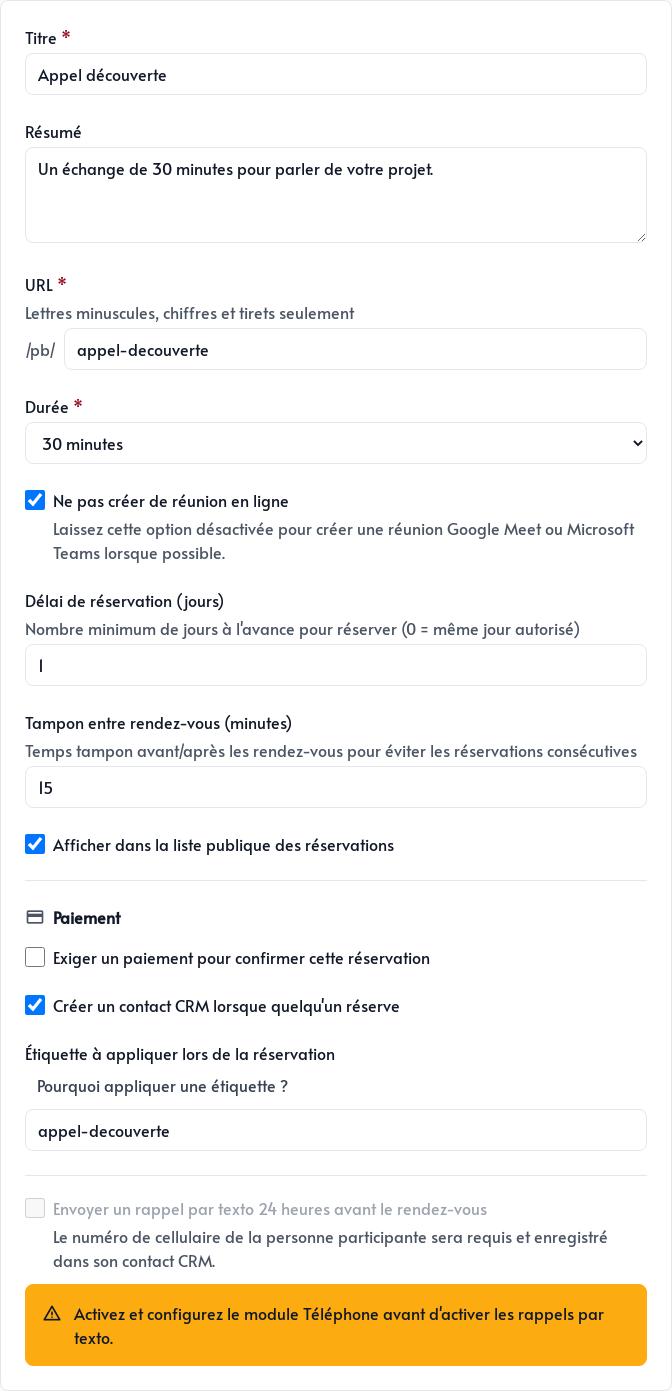
Enable Show in the public booking list to display this page in the /pb/ directory. If disabled, the page does not appear in the list, but anyone with its direct link, such as /pb/page-name, can still open it.
If Stripe is connected to the application, you can also require payment before confirming the appointment.
Create a CRM contact and apply a tag
Enable Create a CRM contact when someone books to automatically add the person to your CRM. If their email address already exists, Parle uses the existing contact instead of creating a duplicate.
You can also choose a Tag to apply when booking. This tag identifies the appointment’s source or type in the CRM and can trigger an email sequence or another automation you have prepared.
For example, the tag discovery-call can start a sequence that sends a preparation questionnaire and follows up after the meeting.
Configure availability
Open the Schedule tab and choose the time zone used for your available hours.
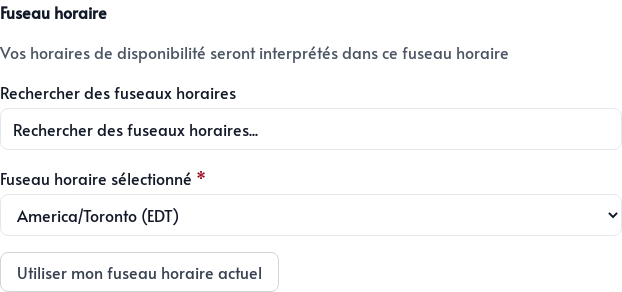
Then enable each day when this appointment type can be booked and enter one or more time ranges. Each page has its own schedule, so you can offer discovery calls in the morning and reserve afternoons for follow-ups, for example.
Parle combines this schedule with calendar events, booking notice, and the buffer between appointments to determine which time slots are offered.
Add questions
The Questions tab adds custom questions to the form. Use them to collect useful information before the meeting, such as the topic or primary objective.
Finally, click Create the booking page. In the list, use the icons to view the page, copy its link, edit it, or delete it.