Before accepting appointments, connect the Bookings module to the calendar where you manage your schedule. Parle uses it to prevent conflicts and add each new appointment.
Open the Bookings module, then click the Go to settings gear icon. Under Calendar, choose your provider.
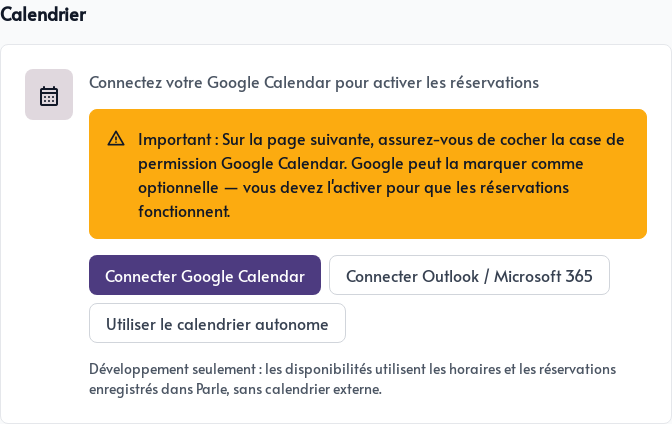
Connect Google Calendar
Click Connect Google Calendar, then log in to the Google account that contains your work schedule.
Google may present Google Calendar access as an optional permission. Check this permission before continuing. Without it, Parle cannot check your availability or create your appointments.
Connect Outlook or Microsoft 365
Click Connect Outlook / Microsoft 365, then sign in to the Microsoft account whose calendar you want to use. Accept the requested permissions so Parle can view and create events.
What happens after connecting
When someone books a time slot, Parle:
- Checks the events already in your calendar
- Adds the appointment to your calendar
- Creates a Google Meet or Microsoft Teams meeting when online meetings are enabled on the booking page
- Sends a calendar invitation to the person who booked
The meeting is created using the provider you connected, so you do not need to copy the appointment or prepare its link manually.
You can now create one or more booking pages with their own duration and availability.