Two sections help you control access to your account: Related accounts, where you manage access granted to an ambassador, and Security, where you can add a passkey.
You will find both in the top menu at apps.parle.work .
Why is my account linked to an ambassador?
Parle ambassadors help small businesses get started by preparing an application, creating a website, selecting the right modules, and reviewing the setup.
Your account is linked to an ambassador when they create it for you or when you register through their site. Parle clearly tells you about this relationship when you sign up.
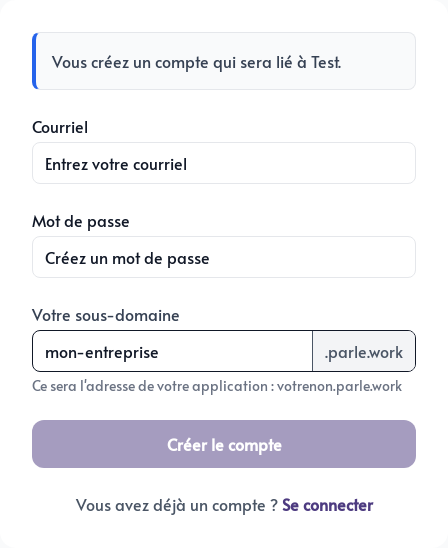
When access is allowed, the ambassador can open your account and applications to assist you. They never need to know your password.
You keep control of this access
Open Related accounts to see the ambassador associated with your account. Allow access to my account shows whether they currently have access.
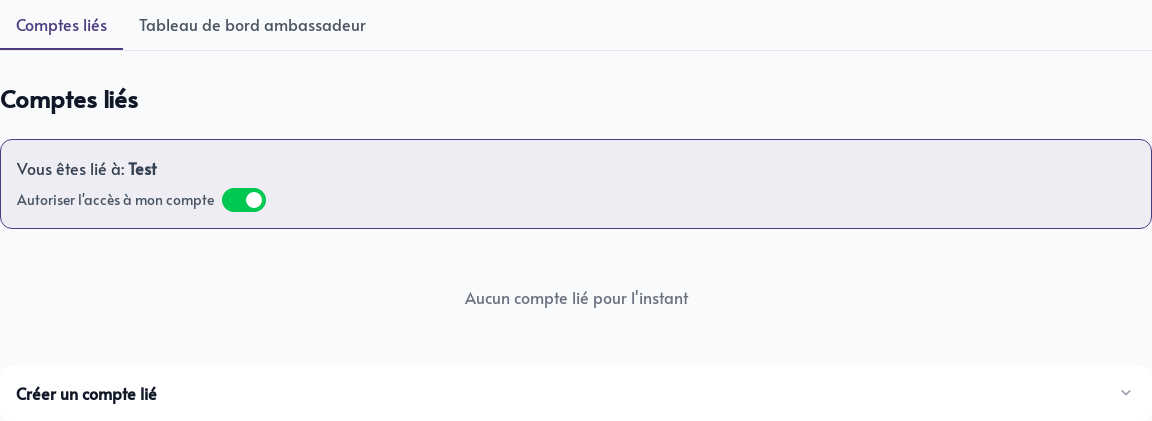
You can disable this button at any time. The ambassador will no longer be able to open your account or apps. This choice belongs to you and can be made without the permission of the ambassador.
This connection is designed to make assistance simple and transparent. If you do not recognize the name shown or have a question about access, contact us and we will review it with you.
Sign in with a passkey
A passkey replaces your password with the method you already use to unlock your device: a fingerprint, facial recognition, PIN, or security key.
It is both faster and safer. The passkey is created specifically for Parle and cannot be reused on a fake site attempting to steal your password.
In the account menu, open Security. Give the key a clear name, such as Office computer or Phone, then click Add a passkey and follow the instructions on your device.
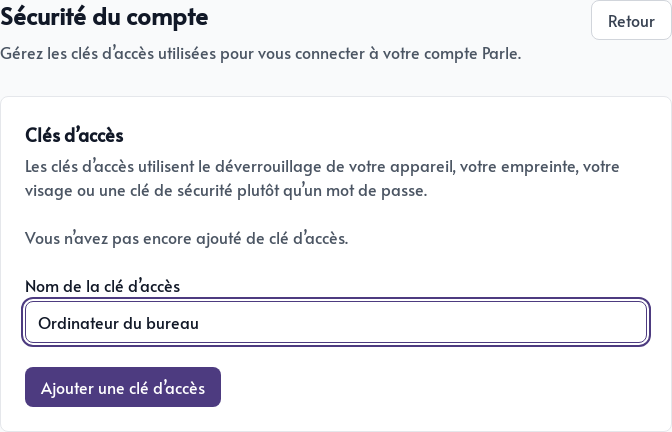
The next time you visit, click Sign in with a passkey on the sign-in page.
If possible, add a passkey to a second trusted device. Remove any passkey associated with a device that has been lost, replaced, or is no longer under your control.